How to Move Your Game Server to NEXUS (Free Migration or Do It Yourself)
Moving a game server comes down to copying the right files from the old host to the new one, on a server running the same game and version. There are three ways to do it with NEXUS: let our staff do it for free, pull the files across yourself with the panel's Server importer, or download and re-upload them. This guide covers all three and lists what to copy for common games.
On this page (6 sections)
Whichever route you take, keep your old server running until you have checked the new one.
Option 1: Let our staff move it (free)
The free migration is the least work. You only pay for your NEXUS server; the move itself is free.
- Order a server for the same game, with a plan that has at least the memory you use now, from game server hosting.
- Open a support ticket from the client area asking for a migration.
- Include your old host's name and access details: their control panel login, or SFTP/FTP address, port, username and password. If your old host supports sub-users, create one for us instead of sharing your main login.
- Say which files to move and what the server runs: the game, its version, and any modpack or mod loader.
- Staff copy your files and worlds and keep you updated in the ticket. Check everything on the new server, then switch your players over.
Option 2: Pull the files across with the Server importer
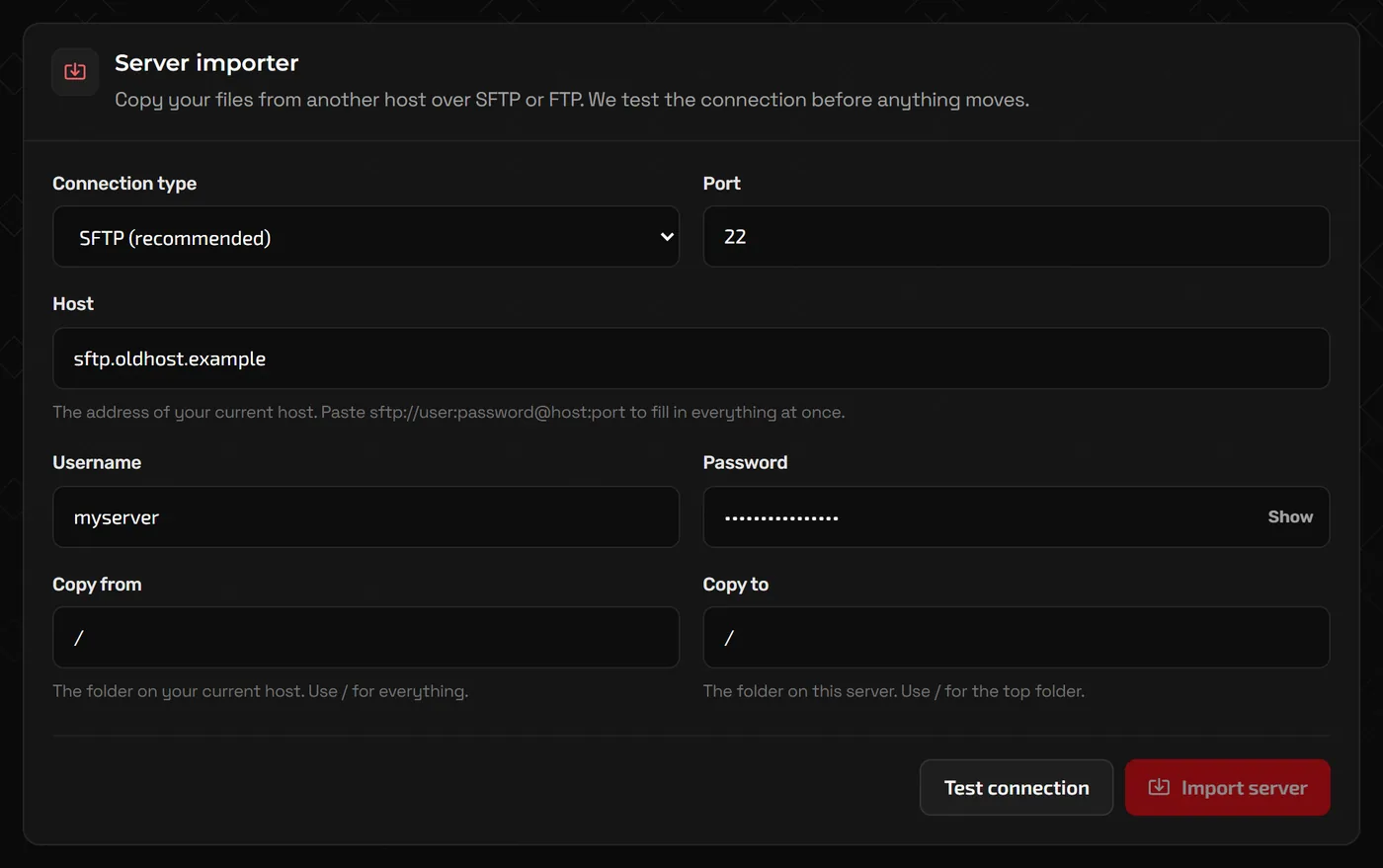
The Server importer copies files straight from your old host to your NEXUS server, without going through your PC. It is in the sidebar in the Advanced view: click Advanced tools at the bottom of the sidebar.
- On your old host, find the SFTP or FTP details: address, port, username and password. Stop the old server so files are not changing while you copy them.
- On NEXUS, click Create backup on the Backups page, then stop your new server.
- Open Server importer, pick SFTP or FTP under Connection type to match your old host, and fill in Host, Port, Username and Password.
- Set Copy from to the folder on the old host, and Copy to to where it should go on NEXUS.
/means the main folder on each side. - Click Test connection, then Import server and confirm with Start import.
- Use Saved connections to keep the old host's details if you will import more than once, and delete them when you are done.
Warning: Copy only game data, not the old host's own startup scripts or server program files. Your NEXUS server already has the game installed, and files with the same name in the destination can be replaced.
Option 3: Download, then upload with SFTP or the panel
If your old host has no SFTP or FTP access, download your files from its panel (many offer a backup download), then upload them to NEXUS.
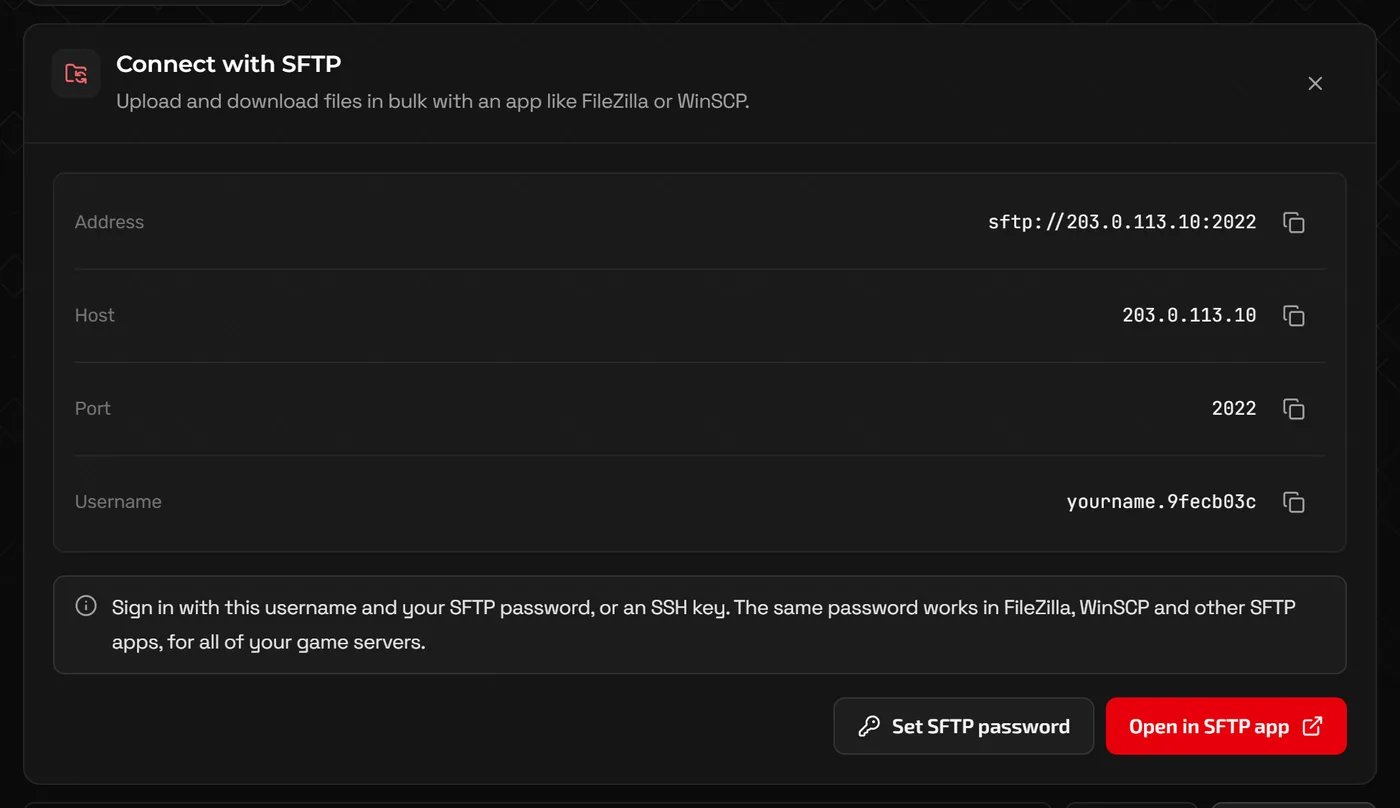
- SFTP handles large folders best. In Files, Connect with SFTP shows the address, port and username and lets you set your SFTP password, and Open in SFTP app opens an installed client such as WinSCP or FileZilla.
- Files in the panel has Upload for individual files and archives you can extract on the server.
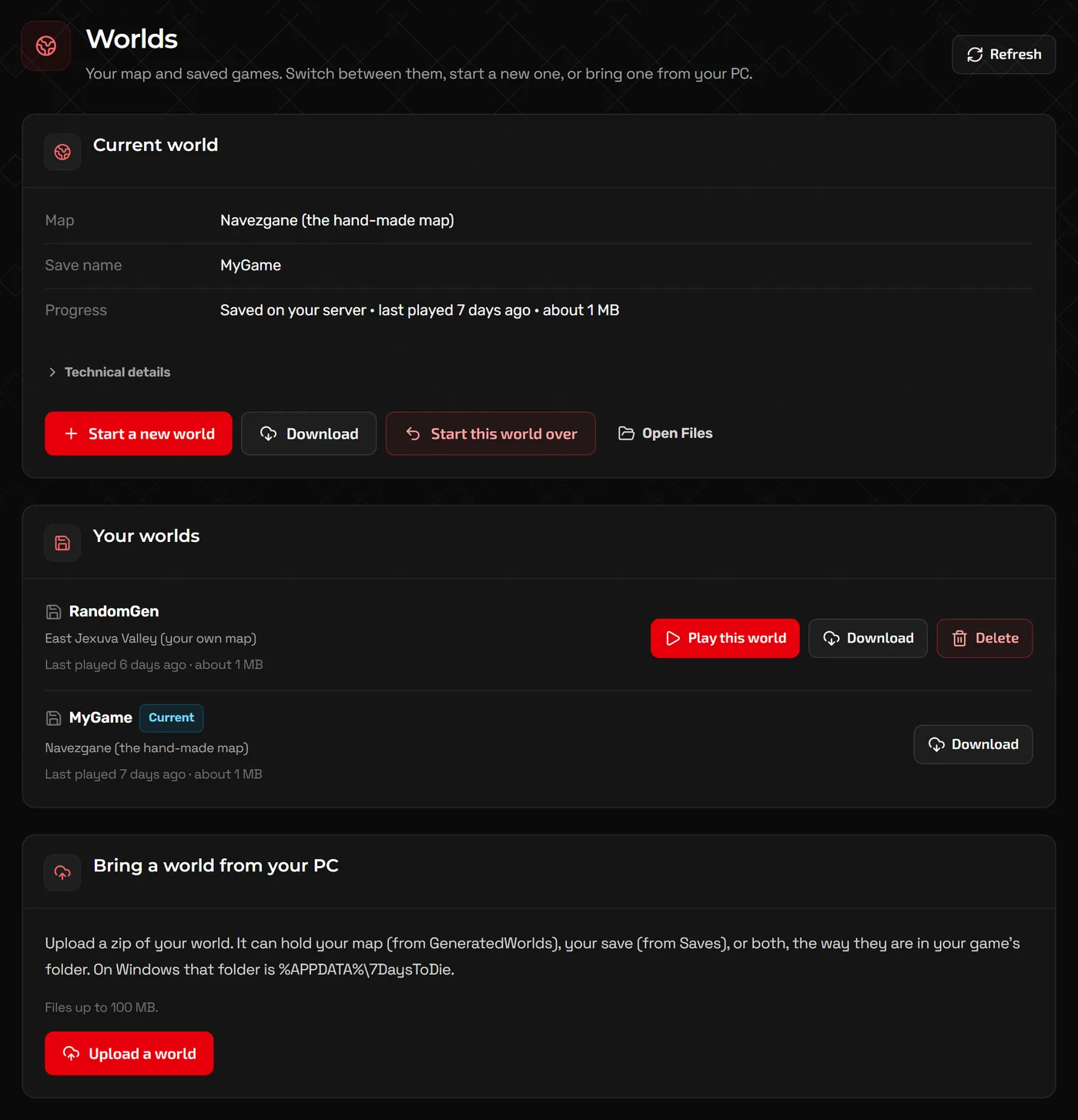
- World pages: several games have their own upload on the panel, which also switches the server to the new world: Worlds for Valheim (a ZIP of your world), Worlds for Palworld (Import a world), and Worlds for 7 Days to Die (Upload a world, up to 100 MB).
What to copy for common games
Minecraft- World folders (
world, plusworld_netherandworld_the_endon Paper and Spigot),server.properties,pluginsormodsandconfig, andwhitelist.json,ops.jsonandbanned-players.json. Install the same server type and version on the Version page first. Valheim- Your world's
.dband.fwlfiles fromworlds_local, plusadminlist.txt,bannedlist.txtandpermittedlist.txt. Upload the world on Worlds; see the Valheim guide. Palworld- The world folder from
Pal/Saved/SaveGames/0/(the one withLevel.savand aPlayersfolder), as a ZIP for Import a world. Settings are easier to re-enter on Game settings. Rustserver/<identity>/(map, save,cfgand player data files) and theoxideorcarbonfolder for plugins.Garry's Modgarrysmod/addons,garrysmod/data, any customgarrysmod/maps, andgarrysmod/cfg/server.cfg. Workshop content is easier to re-add as a collection on Add-ons.7 Days to Die- Your save from
Savesand, for random maps, the map fromGeneratedWorlds, as a ZIP for Upload a world. Re-enter settings on Game settings. Other games- The save or world folder and the main config files. Our game guides list the important files for each game.
Check, then switch your players
- Start the NEXUS server and read the Console for errors as it loads your world, plugins or mods.
- Join it yourself and check builds, inventories and admin rights.
- Give players the new address from the Home page, with Copy address or Invite friends. If you used a domain name with your old host, point it at the new address, or claim a free subdomain on Server address.
- Once everyone is playing on NEXUS, cancel the old server.
Versions must match. A world from a newer game version will not load on an older server, and modded worlds need exactly the same mods. Check the game's Version page in the panel, where it has one, before you start the server for the first time.
FAQ
Is the staff migration really free?
Yes. There is no charge for moving your server from another host. You pay for your NEXUS server as normal. Order first, then open a ticket.
How long does a migration take?
It depends on how much data there is and how quickly your old server can be reached, so there is no fixed time. Staff keep you updated in your ticket.
Will moving reset my world?
Not if the world files are copied in full and the game version matches. Make a backup on both sides before you start.
Which games can be moved?
Any game we host, as long as your NEXUS server runs the same game. If you are unsure, ask us before you order.
Related guides
How to Make a Minecraft Server to Play With Friends
Java or Bedrock, how much RAM you need, the server.properties settings that matter, ops and whitelists, and how friends connect.
How to Host a Valheim Dedicated Server
Server name and password rules, crossplay and join codes, world modifiers, moving your existing world, and admin lists.
How to Install Mods on a Minecraft Server (Forge, Fabric, NeoForge)
Pick the right mod loader, install mods and modpacks, keep client-only mods off the server, and use plugins on Paper instead.