

How to Host a Valheim Dedicated Server
A Valheim dedicated server keeps your world running when the friend who usually hosts is offline, and it takes the hosting load off their PC so fights and big bases run smoother for everyone. This guide covers the settings that matter, the password rules that stop servers from starting, crossplay, world modifiers, moving your existing world, admins and mods.
On this page (10 sections)
Valheim's dedicated server is configured with launch options (such as -name and -password) rather than a settings file. On NEXUS you set them from the Game Hosting Panel's Game settings page, so this guide gives the panel name first and the launch option for reference.
Start with the guided setup
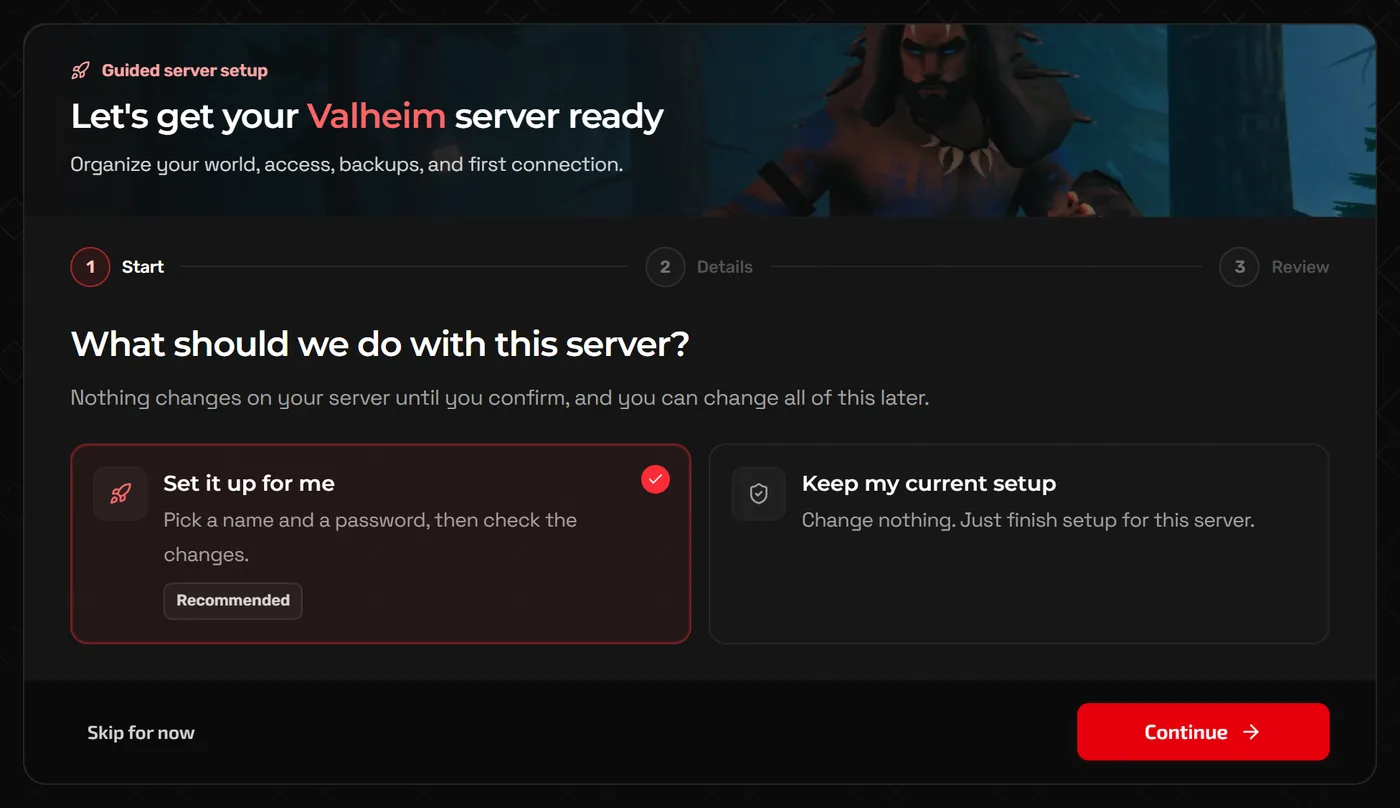
A new Valheim server opens a Guided server setup ("Let's get your Valheim server ready") the first time you open it. It has three steps (Start, Details and Review) and nothing changes until you confirm. Skip for now closes it; Resume setup on the Home page brings it back.
The settings every Valheim server has
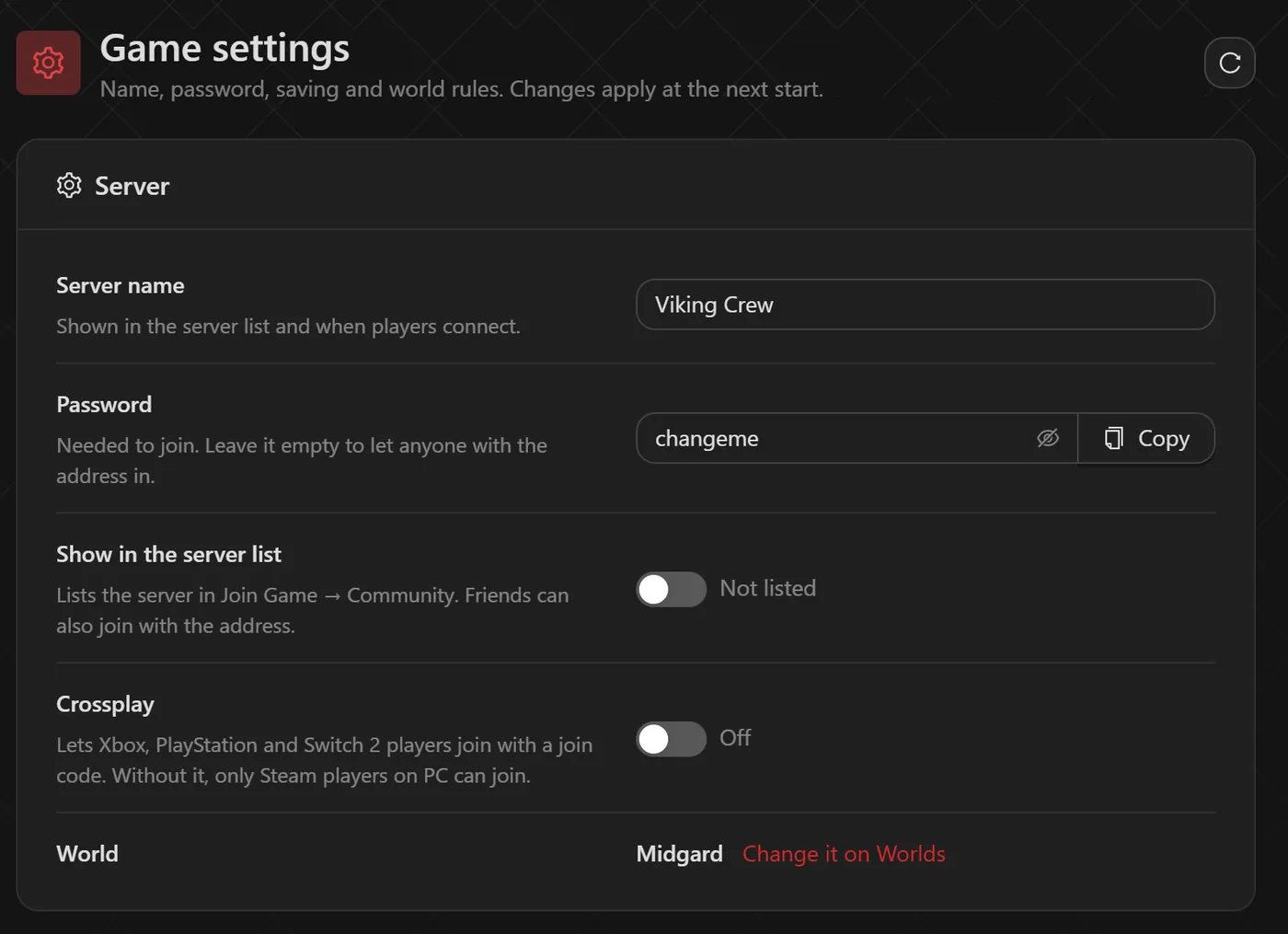
Open Game settings. The Server section holds the basics, and changes apply at the next start.
Server name (-name)e.g. "Viking Crew"- Shown in the server list and when players connect.
Password (-password)e.g. "skol2024"- Needed to join. See the rules below.
Show in the server list (-public)e.g. 1- Lists the server in Join Game, Community. Friends can also join with the address when it is not listed.
Crossplay (-crossplay)- Lets Xbox, PlayStation and Switch 2 players join with a join code. Without it, only Steam players on PC can join.
World (-world)e.g. "Midgard"- The world the server loads. Change it on the Worlds page.
The Saving and Valheim's own backups section sets how often the world saves and how many of Valheim's own world backups to keep (0 turns them off). Valheim saves when the server stops normally; if it is forced to stop, play since the last save is lost. The same options exist as variables on Startup in the Advanced view.
Password rules (the most common reason a server will not start)
- The password must be at least 5 characters long.
- It cannot appear in the server name. A server called "Midgard Mates" with the password "Midgard" fails.
- Avoid spaces and special characters that need quoting; letters and numbers are safest.
If the server stops right after starting, the Console usually says which rule was broken.
How players join
Your server address (IP and port) is at the top of the Home page, with Copy address and Invite friends buttons. Server address in the sidebar lets you claim a free subdomain if you would rather share a name.
- In Valheim, click Start Game, choose a character, then open the Join Game tab.
- Click Join IP (or Add server), enter the address as
IP:port, and connect. - Enter the server password when asked.
Tip: Adding the server to Steam's own server browser (View, Game Servers, Favorites) uses the query port, which is the game port plus one. In the game's own Join IP box, use the game port.
Crossplay and join codes
Turn on Crossplay in Game settings and restart. Valheim then routes connections through its crossplay service, and when the server starts the Console prints a line that includes a six-digit join code. Invite friends on the Home page shows it too, as Console join code. Players on Xbox, PlayStation and Switch 2 enter that code to join; Steam players can use the code or the address.
- The join code changes every time the server restarts, so share it again after each restart.
- Everyone must be on the same game version. Console updates can arrive at slightly different times from Steam, so a new patch may briefly lock one side out.
- Only enable crossplay if you need it. Steam-only groups can leave it off.
World modifiers and presets
The world modifiers you see when creating a world in single player are in the World rules section of Game settings. Rules apply when the world loads, so restart to use them.
Difficulty (-preset)e.g. casual- Keep the world's own rules, or one of Valheim's presets:
normal,casual,easy,hard,hardcore,immersiveorhammer. Combat (-modifier combat)e.g. hardveryeasy,easy,hardorveryhard.Death penalty (-modifier deathpenalty)e.g. casualcasual,veryeasy,easy,hardorhardcore.Resources (-modifier resources)e.g. moremuchless,less,more,muchmoreormost.Raids (-modifier raids)e.g. nonenone,muchless,less,moreormuchmore.Portals (-modifier portals)e.g. casualcasuallets everything through portals;hardandveryhardrestrict portals further.Free building, Raids per player, Passive enemies, No map (-setkey)- Switches for
nobuildcost,playerevents,passivemobsandnomap.
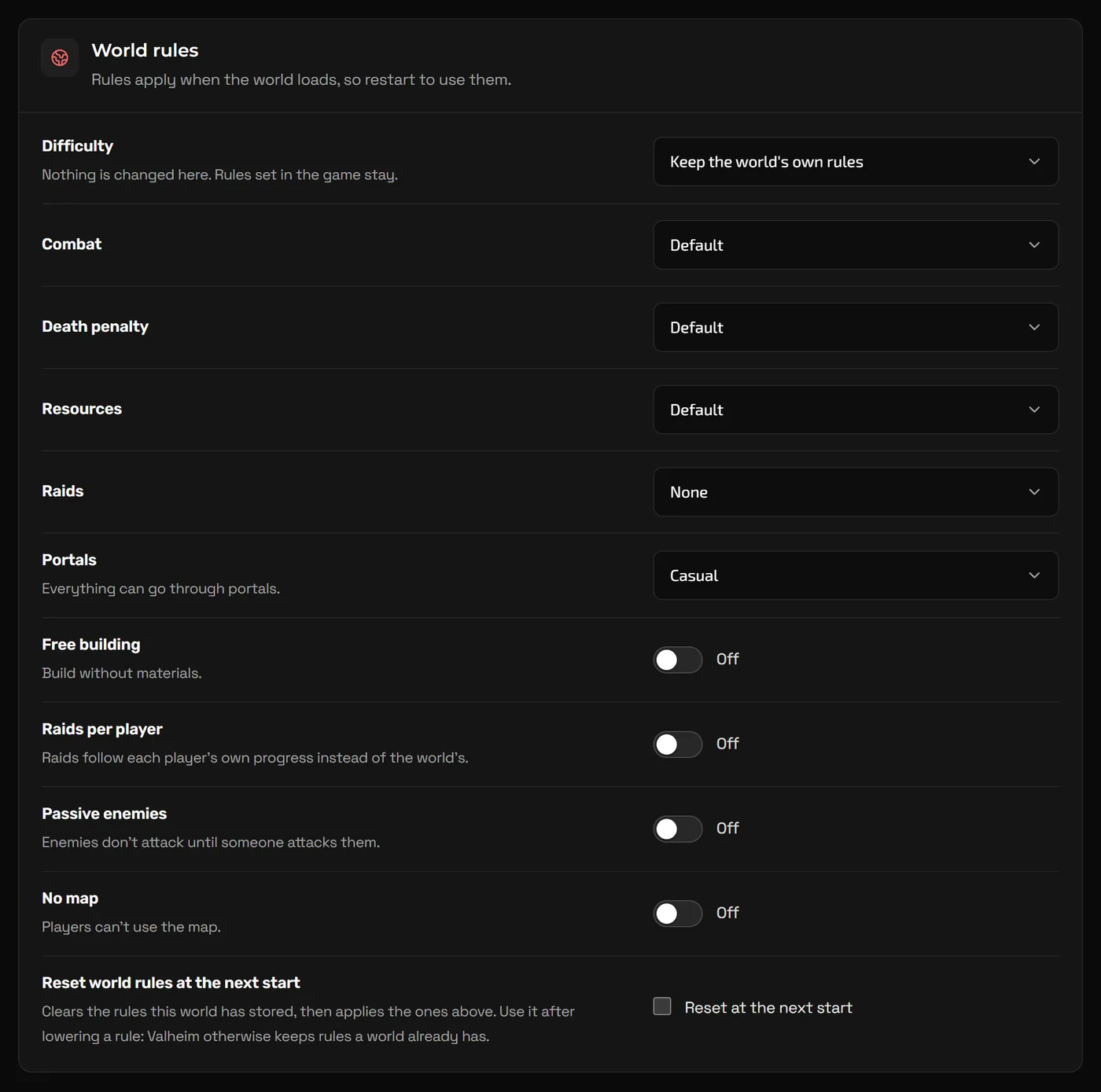
Warning: A world remembers the rules it already has. If you lower a rule, tick Reset world rules at the next start: it clears the rules the world has stored, then applies the ones you picked.
Moving your existing world to the server
- On your PC, open
%userprofile%\AppData\LocalLow\IronGate\Valheim\worlds_local(press Win + R and paste it). Each world is a pair of files:WorldName.dbandWorldName.fwl. If your world is not there, it is saved to Steam Cloud; move it to local storage from the game's world menu first. - Zip your world, as the Worlds page in the panel describes.
- Stop your server, open Worlds and click Upload a world to upload the ZIP.
- Make it the world the server plays (Play this world) and start the server.
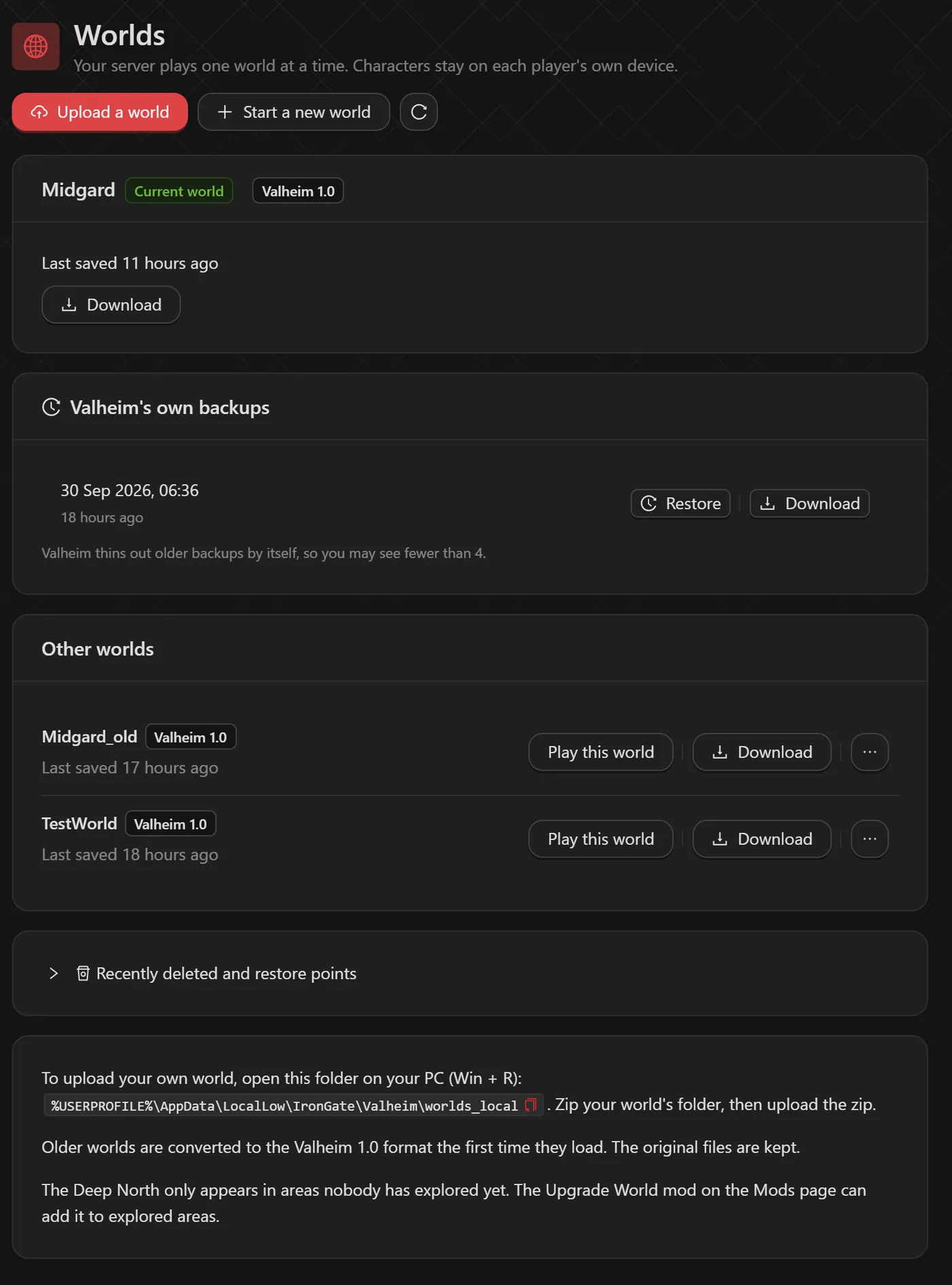
Older worlds are converted to the Valheim 1.0 format the first time they load, and the original files are kept. The same page lists Valheim's own backups with Restore and Download.
Admins, bans and the allow list
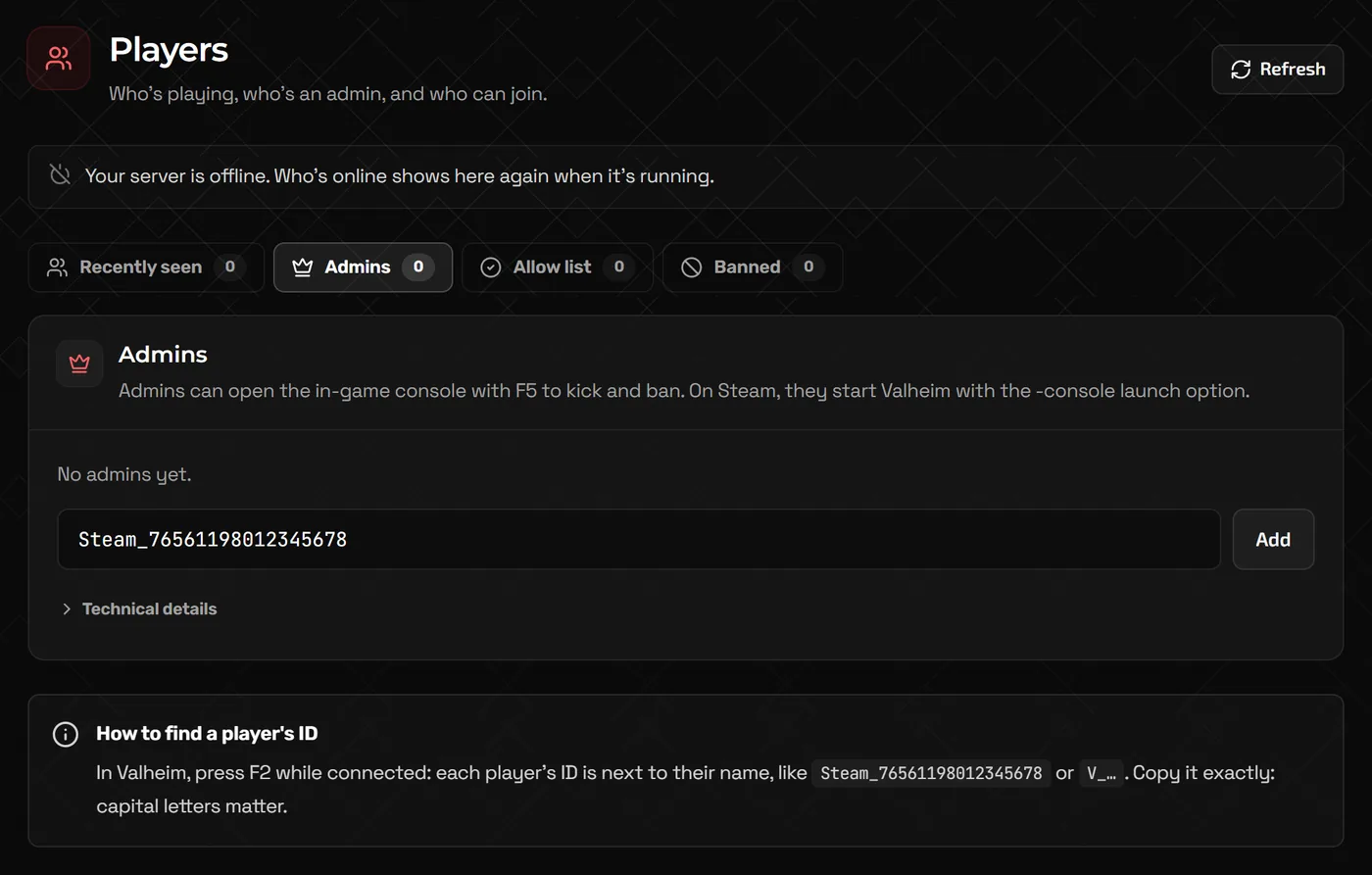
Open Players. Its tabs are Recently seen, Admins, Allow list and Banned. On Admins, Allow list or Banned, paste a player's ID into the box and click Add. The allow list works like a whitelist: when anyone is on it, only they can join.
- IDs look like
Steam_76561198012345678. In Valheim, press F2 while connected: each player's ID is next to their name. Copy it exactly; capital letters matter. - Recently seen remembers players from the server log, with Make admin and Add to allow list for each, but Valheim does not always write a name and ID together, so ask the player for the ID in their F2 panel if one is missing.
- Admins open the in-game console with F5 to
kick,ban,unbanandsave. On Steam, they start Valheim with the-consolelaunch option. Admins can also turn ondevcommandsfor cheats, which is handy for fixing a broken build and easy to abuse.
Mods
Most Valheim mods run on BepInEx. The panel's Mods page turns BepInEx on and adds mods with one click; restart the server to use changes. It opens with Installed, your mods, then Add mods, grouped by who needs them: Server only: players don't need them, so players install nothing; Admin tools: admins install them too; and Players install them too, which must also be on each player's game. Mods that do not work with crossplay are labelled.
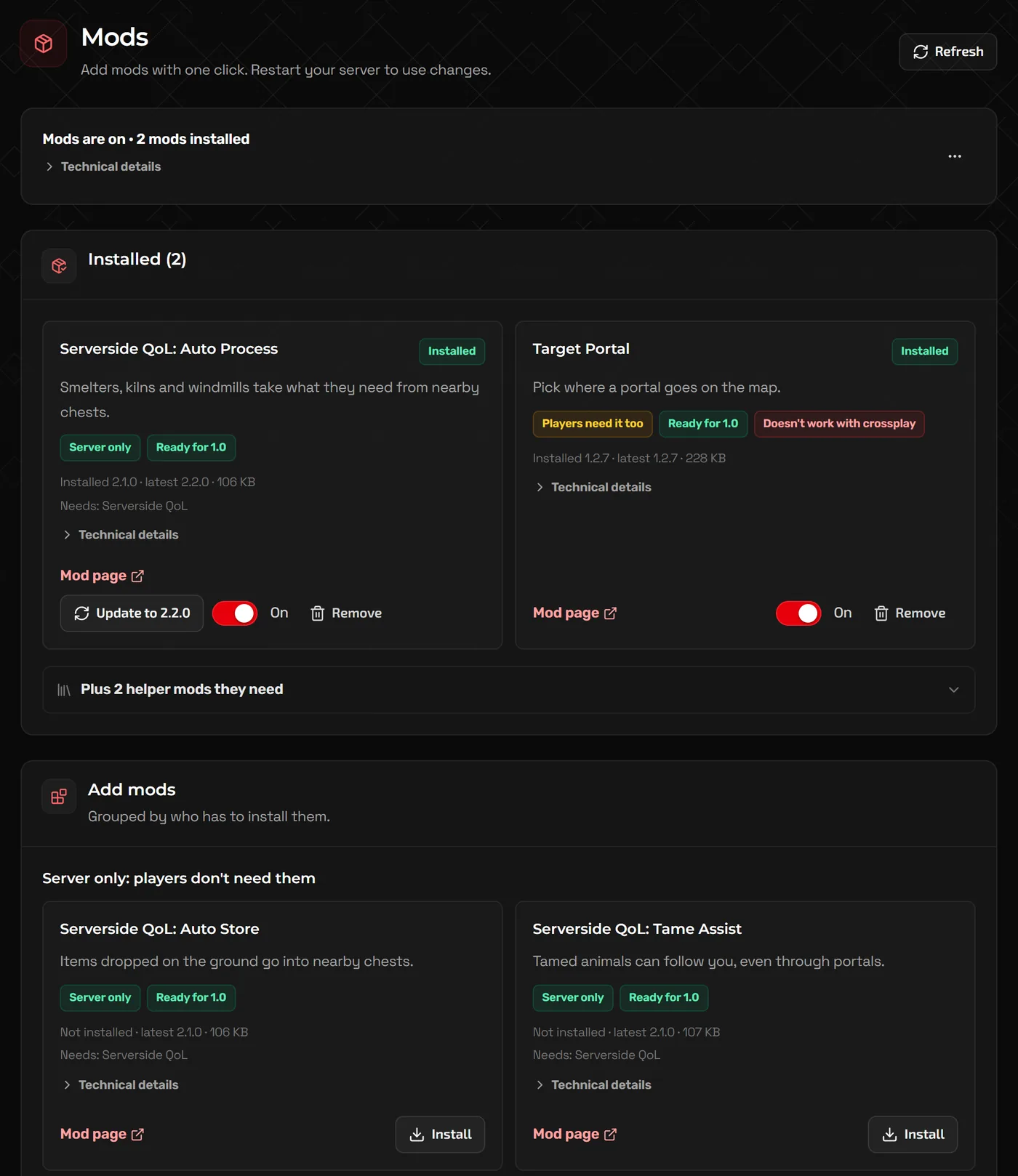
Our Valheim mods guide covers installing them, getting players onto the same mods, adding mods the page does not list, and holding game updates while mods catch up.
FAQ
Why does my Valheim server not show in the community list?
Check that Show in the server list is on in Game settings, restart, and give it a few minutes to appear. Searching the full server name helps. Players can always join by address or join code even when it is not listed.
Can I use a world that has world modifiers already?
Yes. Upload the world as above. To keep its rules, leave Difficulty on Keep the world's own rules; to change them, pick new rules and tick Reset world rules at the next start.
How many players can join?
Valheim supports up to 10 players per world. Bigger bases and more players exploring at once need more resources, so size the plan for the busiest evening, not the average.
Does the server keep backups?
Valheim keeps its own rolling world backups (see Game settings), which you can restore on the Worlds page. The panel's Backups page adds Create backup, a Daily backup and an Automatic restart, and Game settings has Back up the whole server.
Related guides
Palworld Server Settings Explained (PalWorldSettings.ini)
Where PalWorldSettings.ini lives, how to edit it without breaking it, what the important keys do, and how to use admin commands.
Project Zomboid Server Settings and Workshop Mods
The three config files, the settings worth changing, adding Workshop mods and maps correctly, and admin access levels.
How to Install Valheim Server Mods with BepInEx
One-click mods, which ones players must install too, manual BepInEx uploads, crossplay limits and surviving Valheim updates.