
Game panel tour
Included with every game serverYour Whole Server, One Panel
Start it, set it up, add mods, back it up and share it from one screen, in plain words.
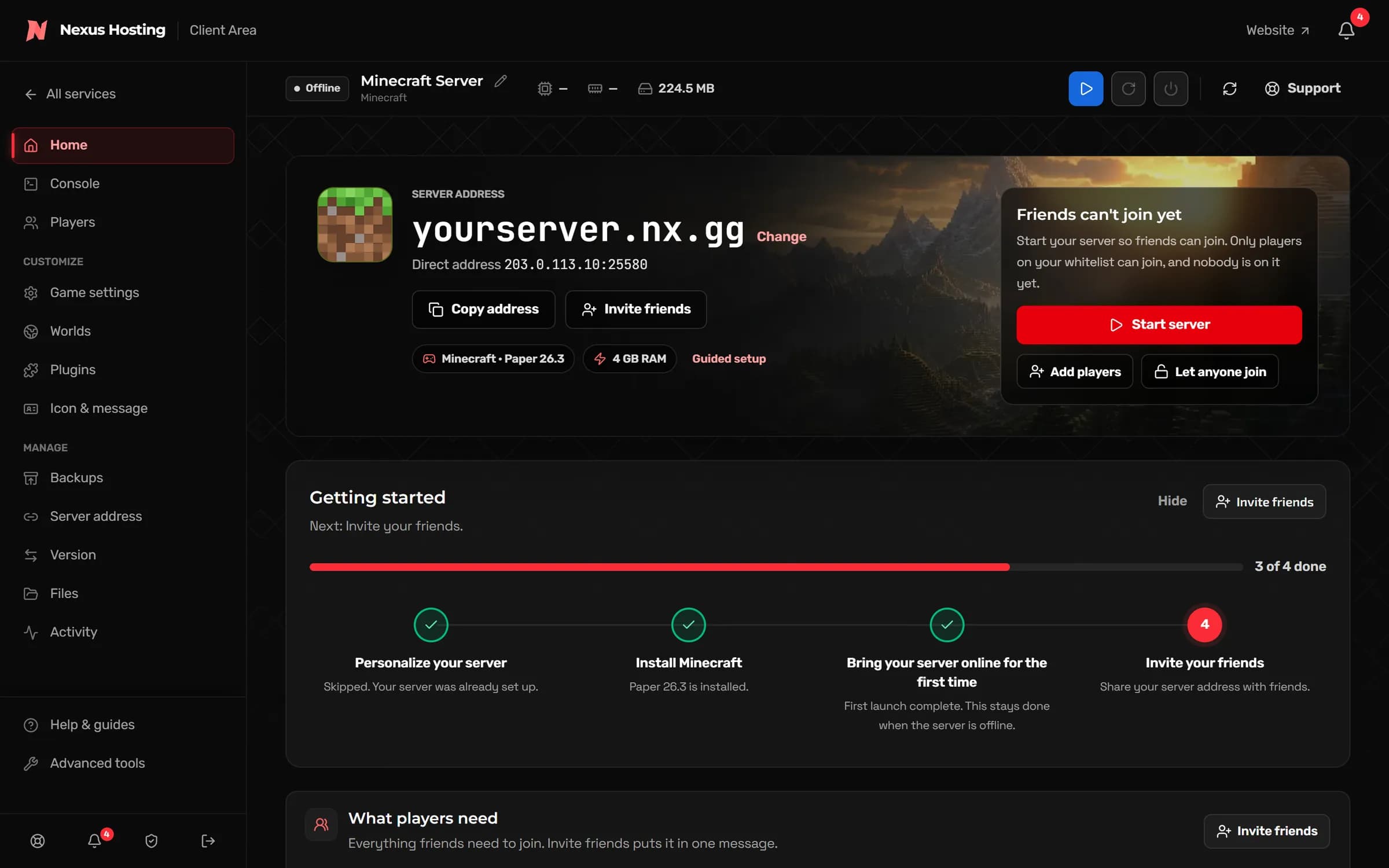
Simple and Advanced
Simple for everyday jobs. Advanced for every tool.
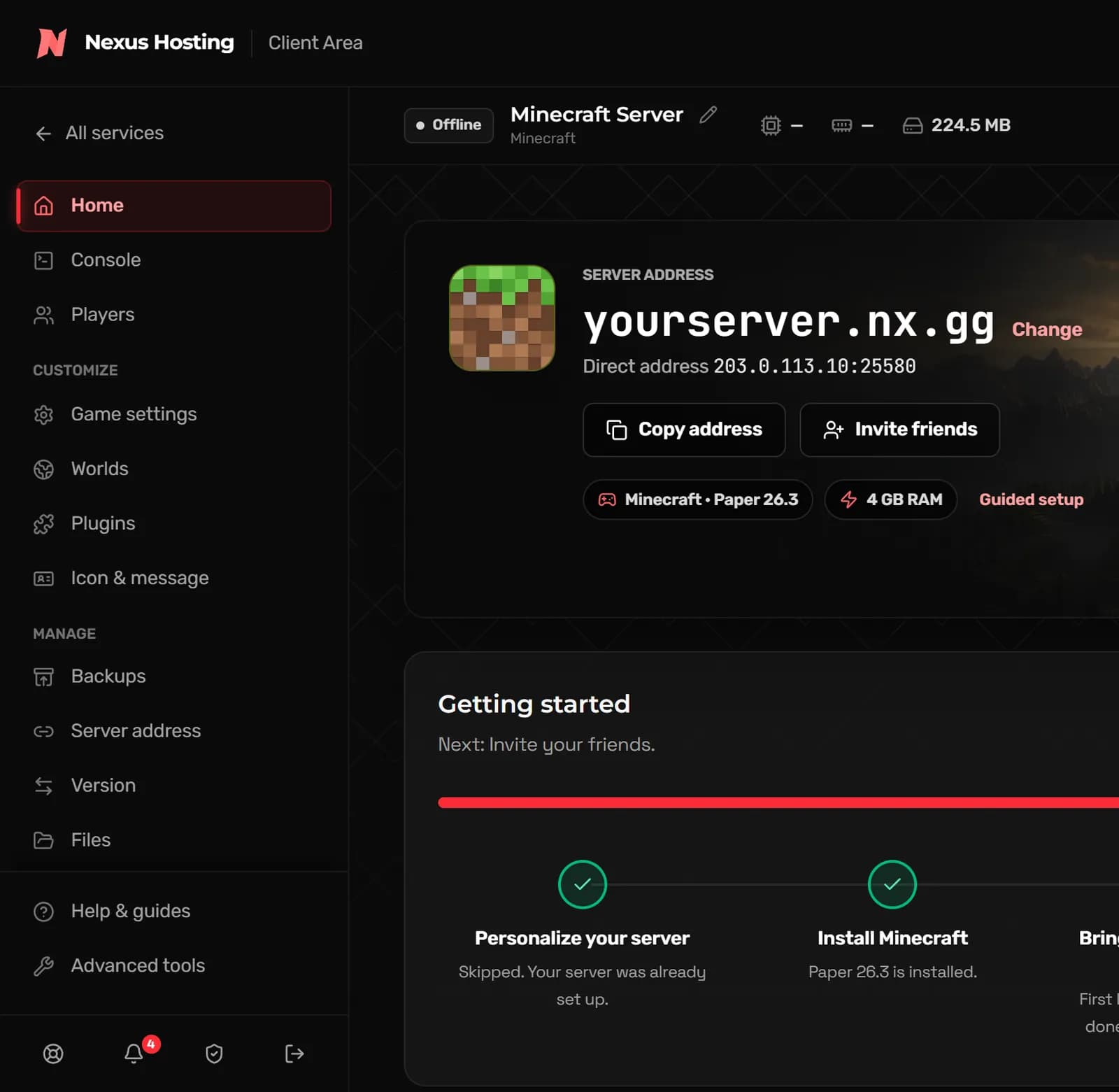
Simple view keeps the jobs you do every week in plain words: start the server, change game settings, add plugins, make a backup. Advanced view adds every tool the panel has, and you can switch back whenever you like.
- Simple view: Home, Console, Players, Game settings, Backups, Version, Files and your game’s own pages
- Advanced view adds Schedules, Users, Databases, the Server Importer, Network and Startup
- Switch views from the sidebar at any time
Console and stats
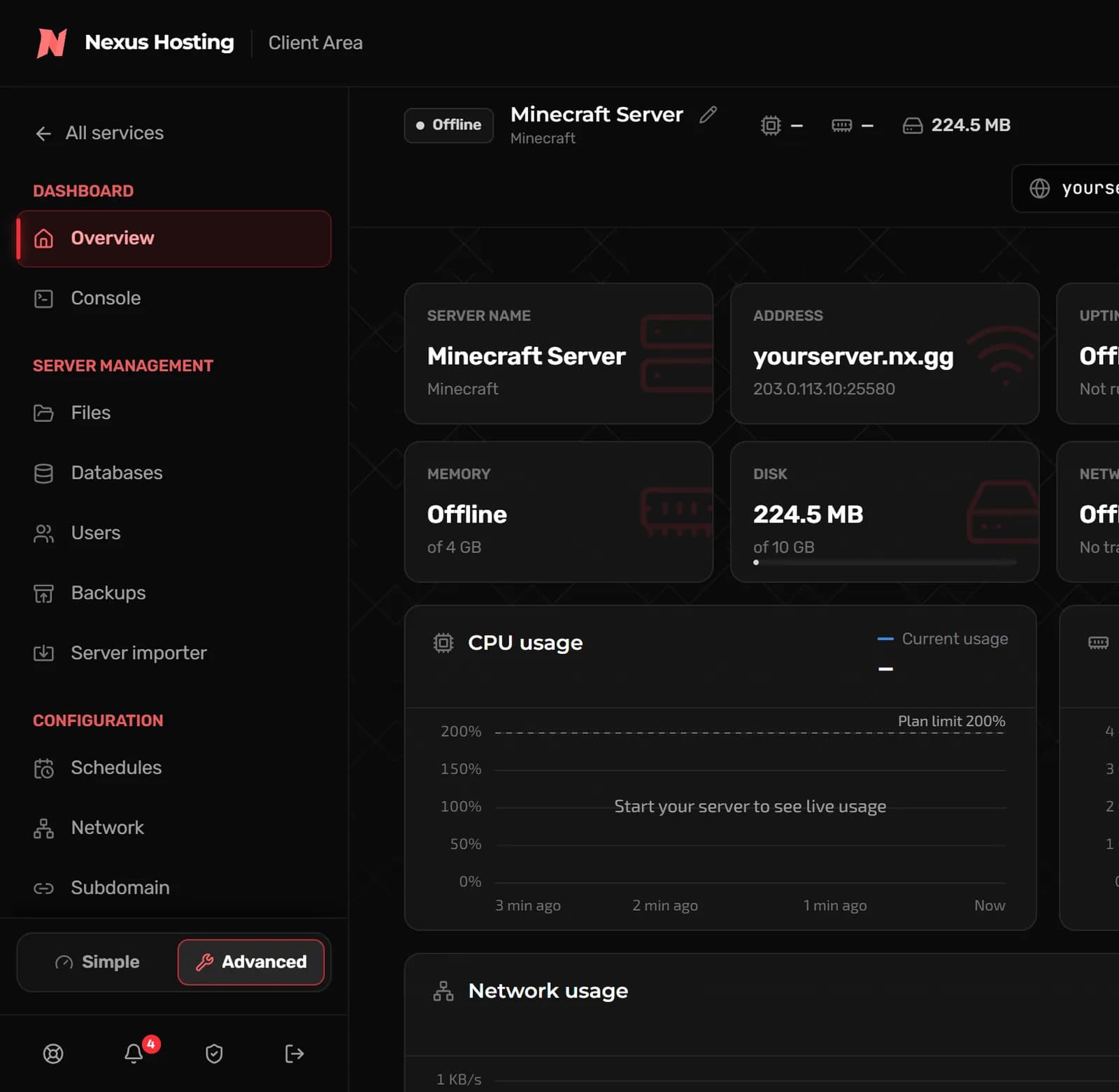
Live console and stats
Watch your server’s console as it happens and type commands straight into it. Start, restart and stop it from the bar at the top of every page, and keep an eye on how hard it is working.
- Send any server command from the console
- Start, restart and stop buttons on every page
- Live CPU and memory readings at the top, with usage graphs in Advanced view
Guided setup
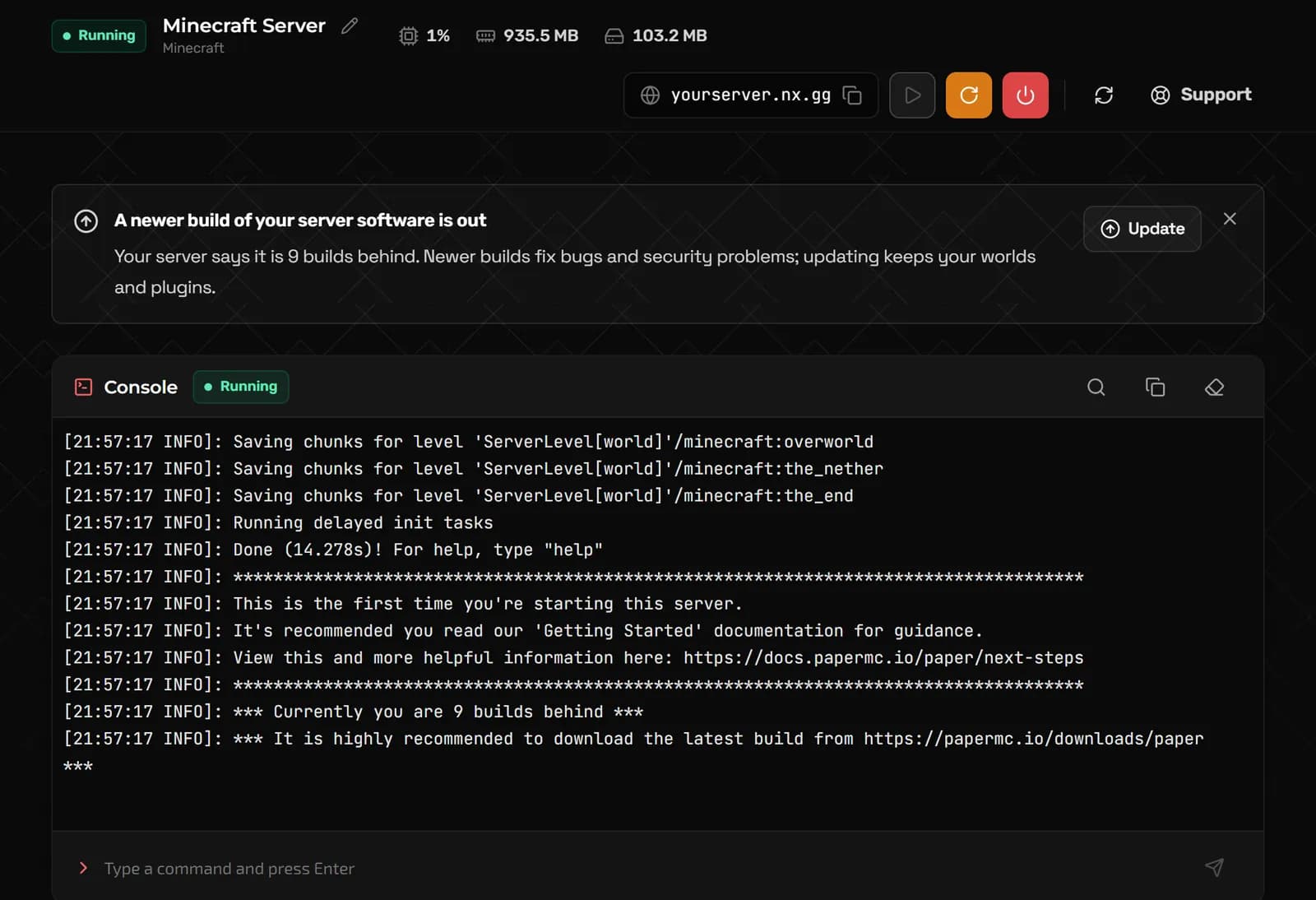
Guided setup
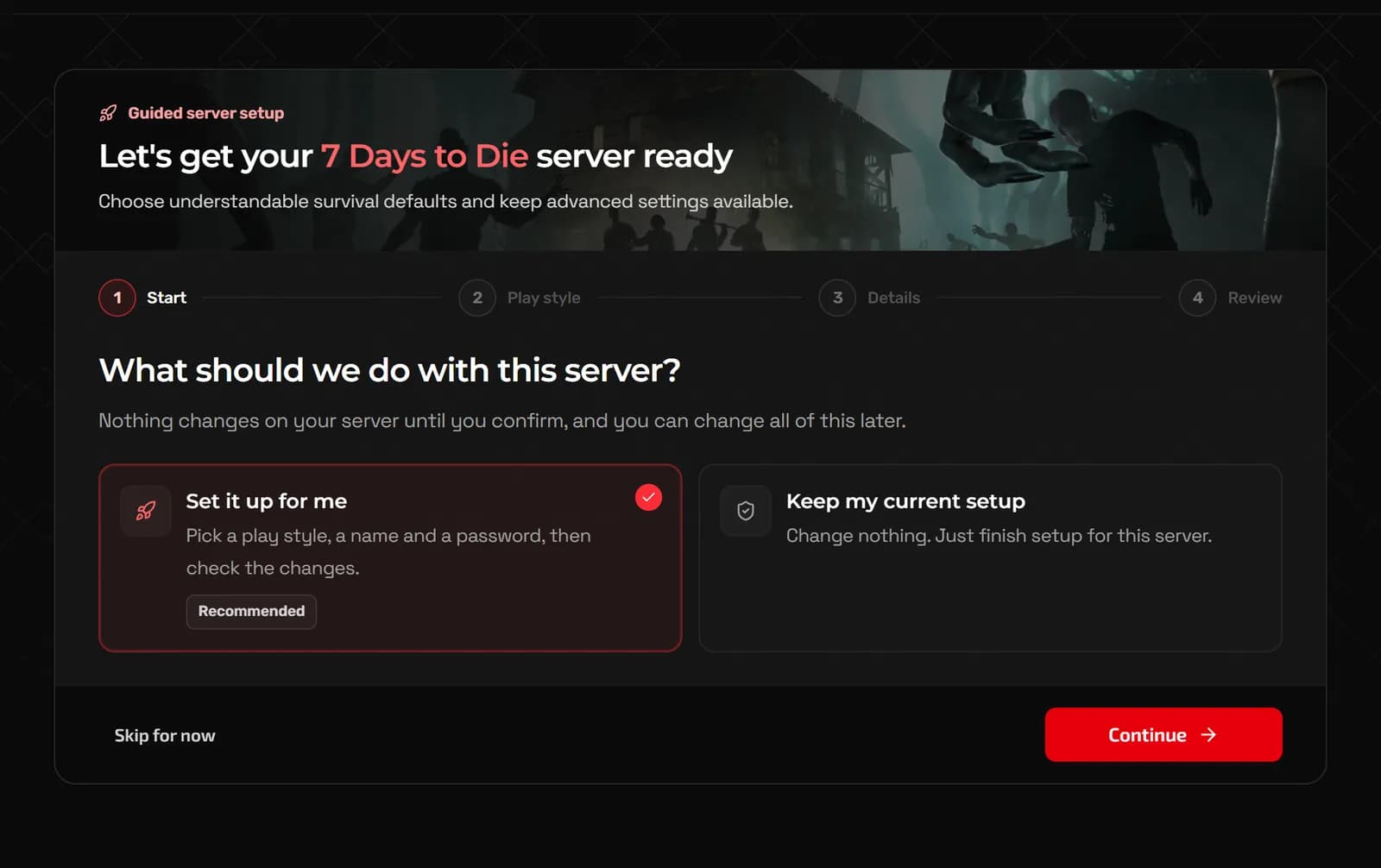
A new server asks a few questions about how you want to play, then sets itself up to match. You can skip it, and come back to it from Home whenever you like.
- Pick a play style and the panel fills in the settings
- Minecraft: choose the server software and version, and it installs for you
- A Getting started checklist on Home shows what is left
Plugins and mods
Plugins, mods and modpacks
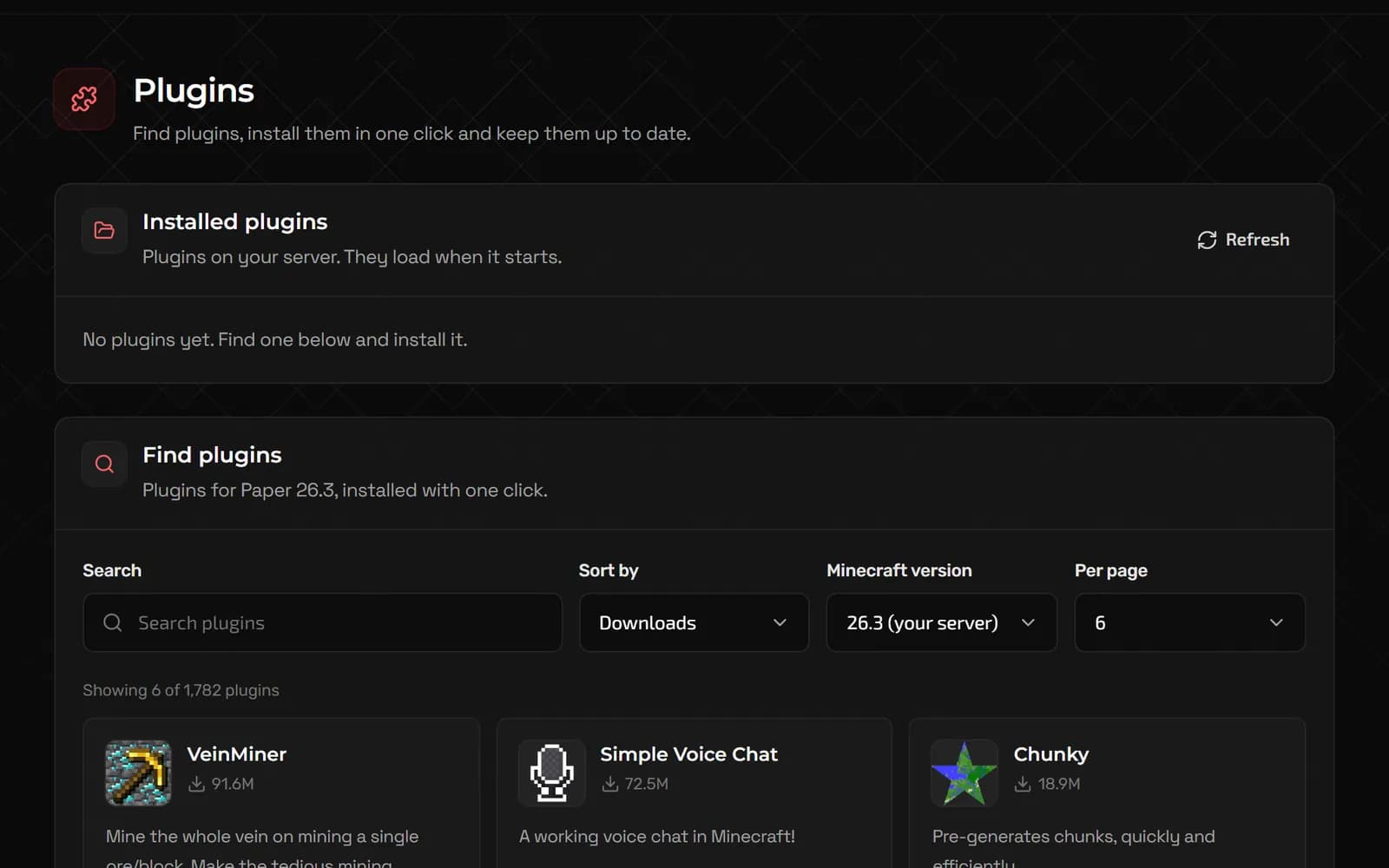
Search the big catalogues from inside the panel and install with one click, without downloading files and uploading them yourself.
- Minecraft plugins from Modrinth, CurseForge, SpigotMC, Hangar and Polymart
- Minecraft mods, and whole modpacks from Modrinth, CurseForge, Feed The Beast, Technic and ATLauncher
- Valheim mods and Garry’s Mod Workshop add-ons have their own pages
Version changer
Change versions safely
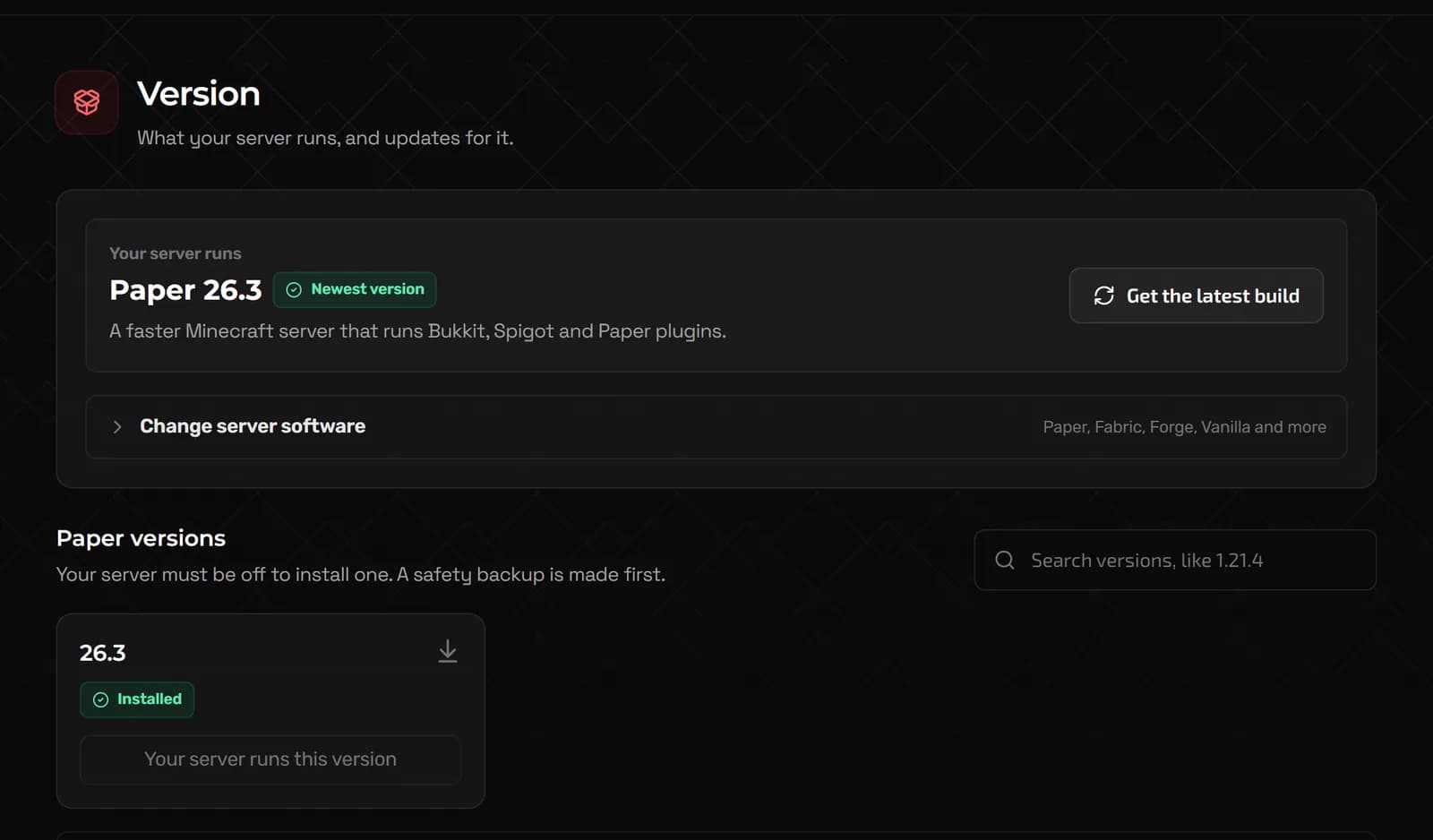
Pick the Minecraft version and server software you want and the panel installs it. It checks there is a safety backup before it replaces the server file, and your worlds stay put.
- Paper, Purpur, Fabric, Forge, NeoForge or Vanilla, any version they offer
- A safety backup before the change
- Valheim and 7 Days to Die have a version page too
Backups
Backups you can restore
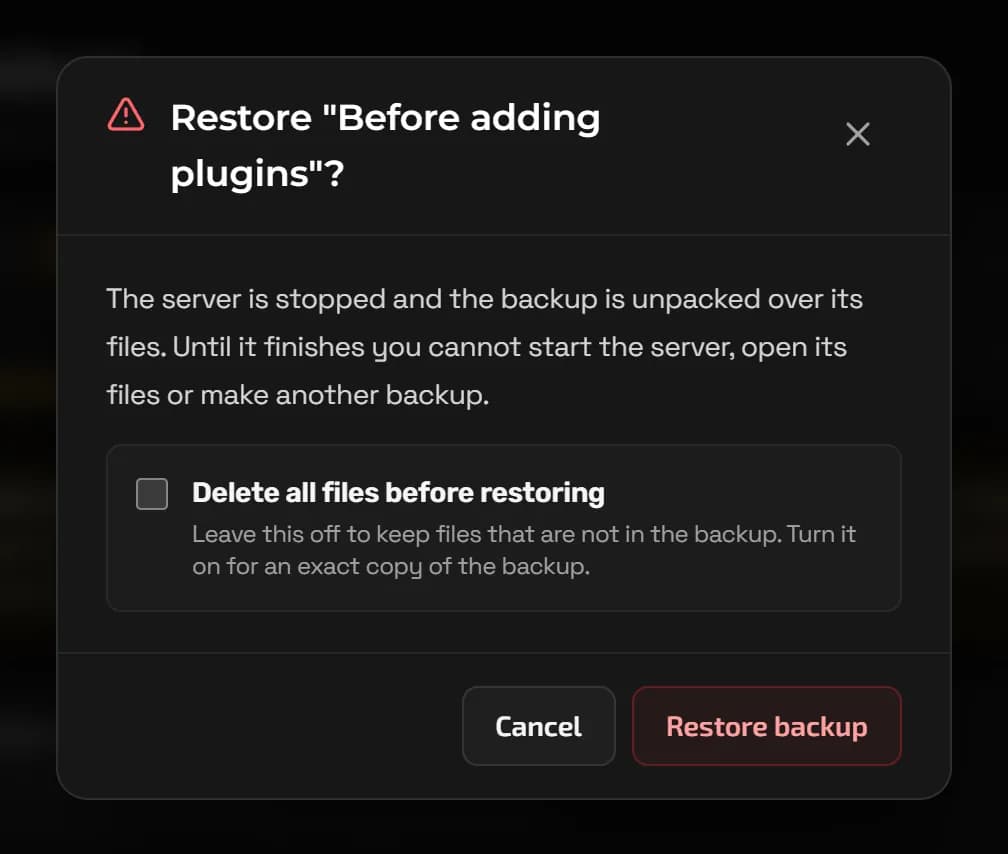
Make a backup before a big change, or turn on a daily backup and stop thinking about it. Any backup can be restored or downloaded from the same page.
- Back up any time with one click
- Changes that back up first ask which backup to replace when your slots are full
- Restore or download any backup
- Shows how many backup slots your plan has
Server Importer
Bring your server
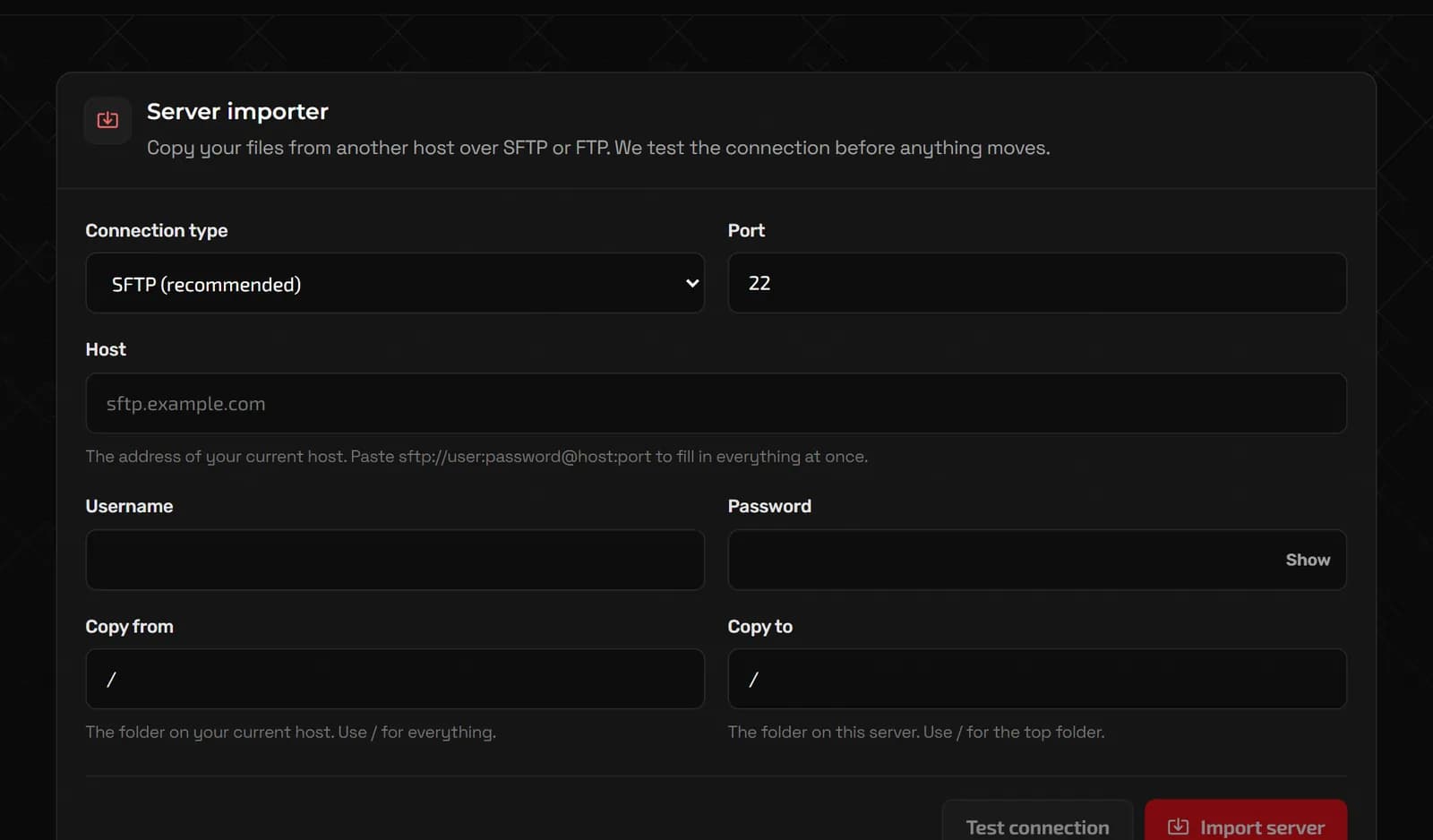
Moving from another host? The Server Importer copies your files across from your old host over SFTP or FTP. Rather not do it yourself? Our staff will move it for you, free.
- Enter your old host’s address, port, username and password
- Test the connection before you import anything
- Choose which folder to copy and where it goes
Users
Share with friends
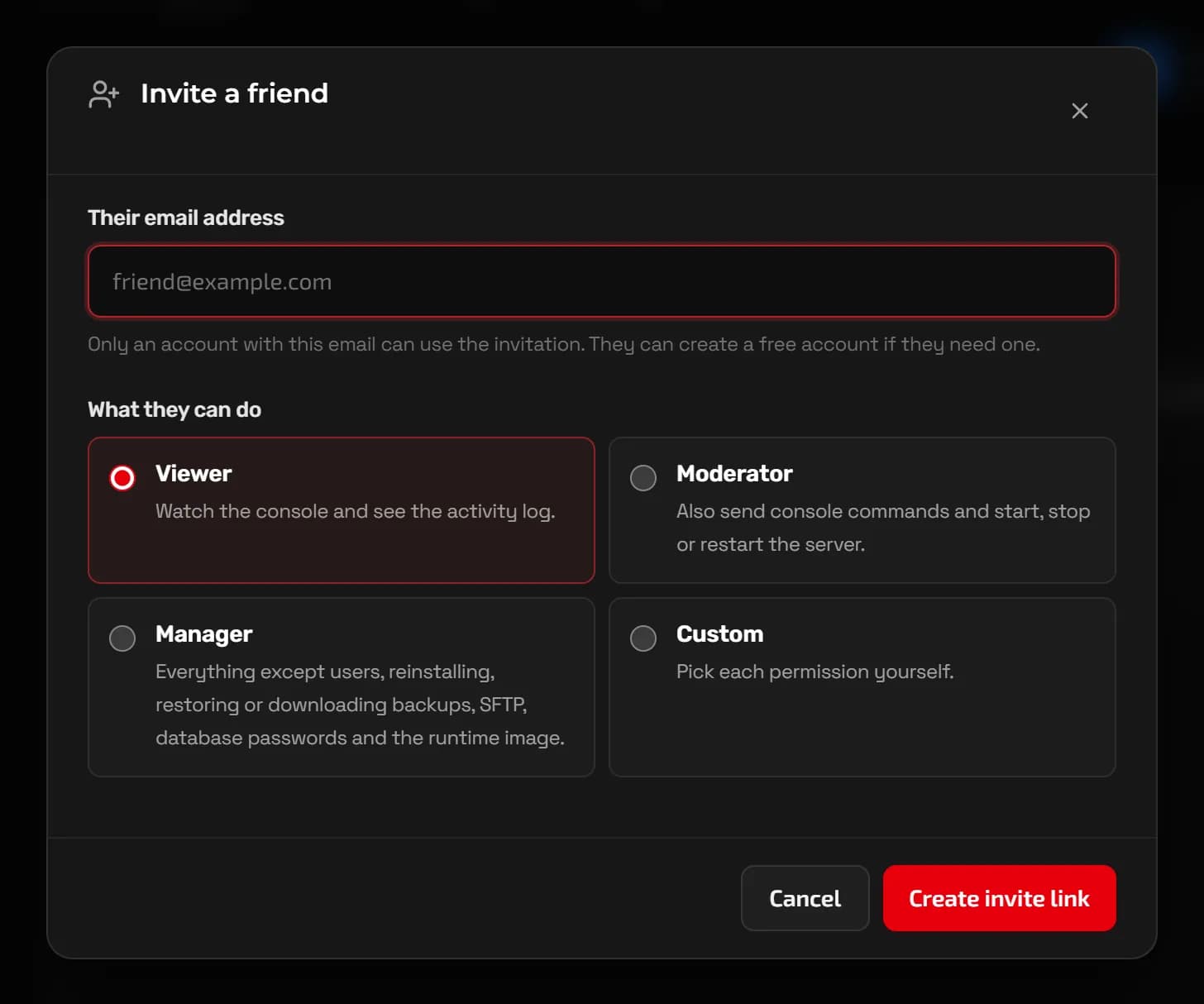
Invite a friend to help run your server with only the access you choose. They sign in with their own free NEXUS account and never see your billing or other services.
- Invite someone by email from Users
- Pick Viewer, Moderator, Manager, or choose each permission yourself
- Remove their access whenever you like
If it stops
Know why it stopped
If your server crashes or can’t start, Home says what happened in plain words, the likely cause, and what to try next.
- The likely cause, like running out of memory
- Start it again, restore a backup or open the console from the same card
Invite friends
Get your friends in
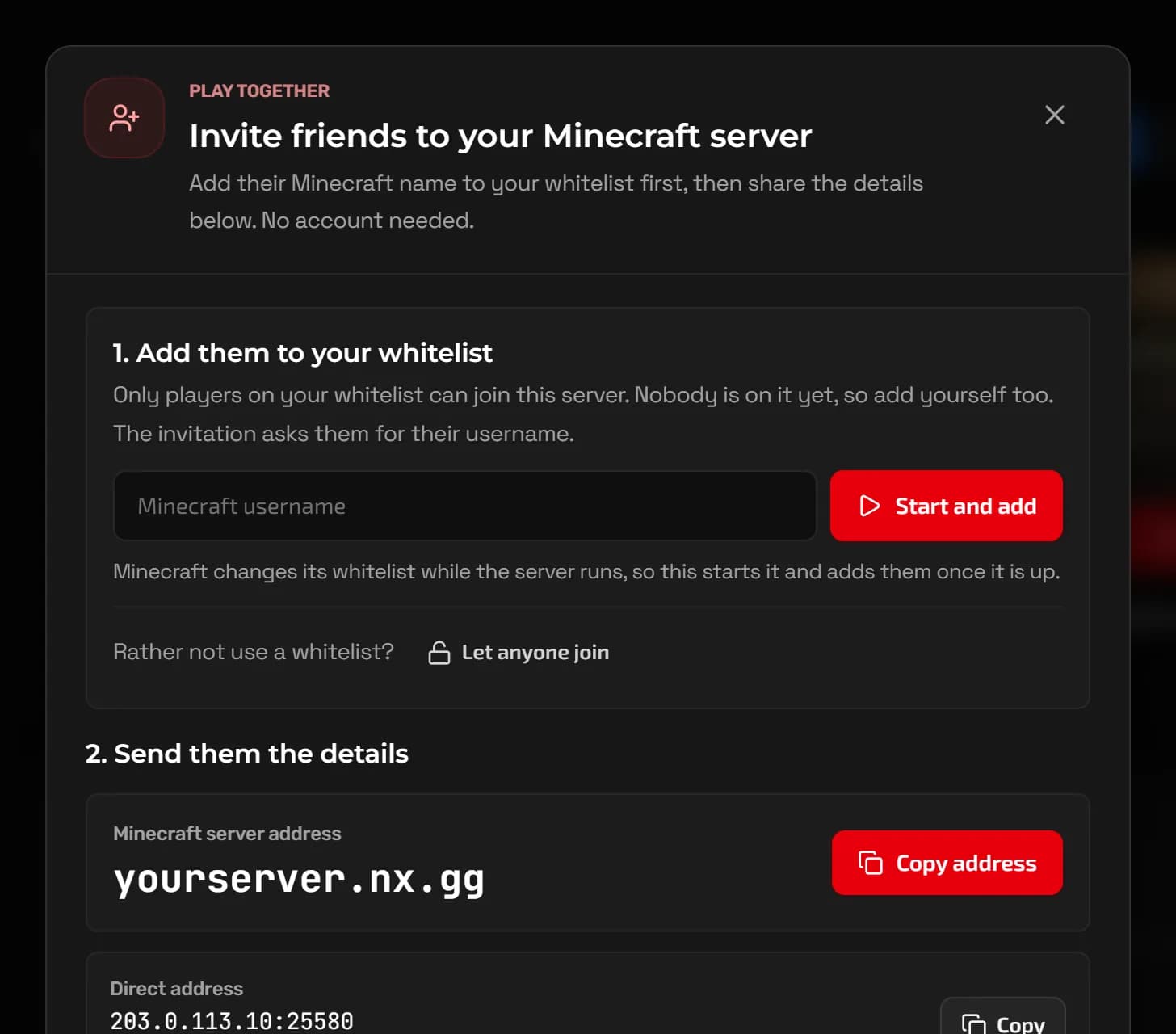
Invite friends walks you through what players need: add them to your whitelist, then copy one message with the address and version they need.
- Add their Minecraft names to the whitelist from the same dialog
- Copy the address, or one invitation with everything in it
Fresh start
Start a fresh world
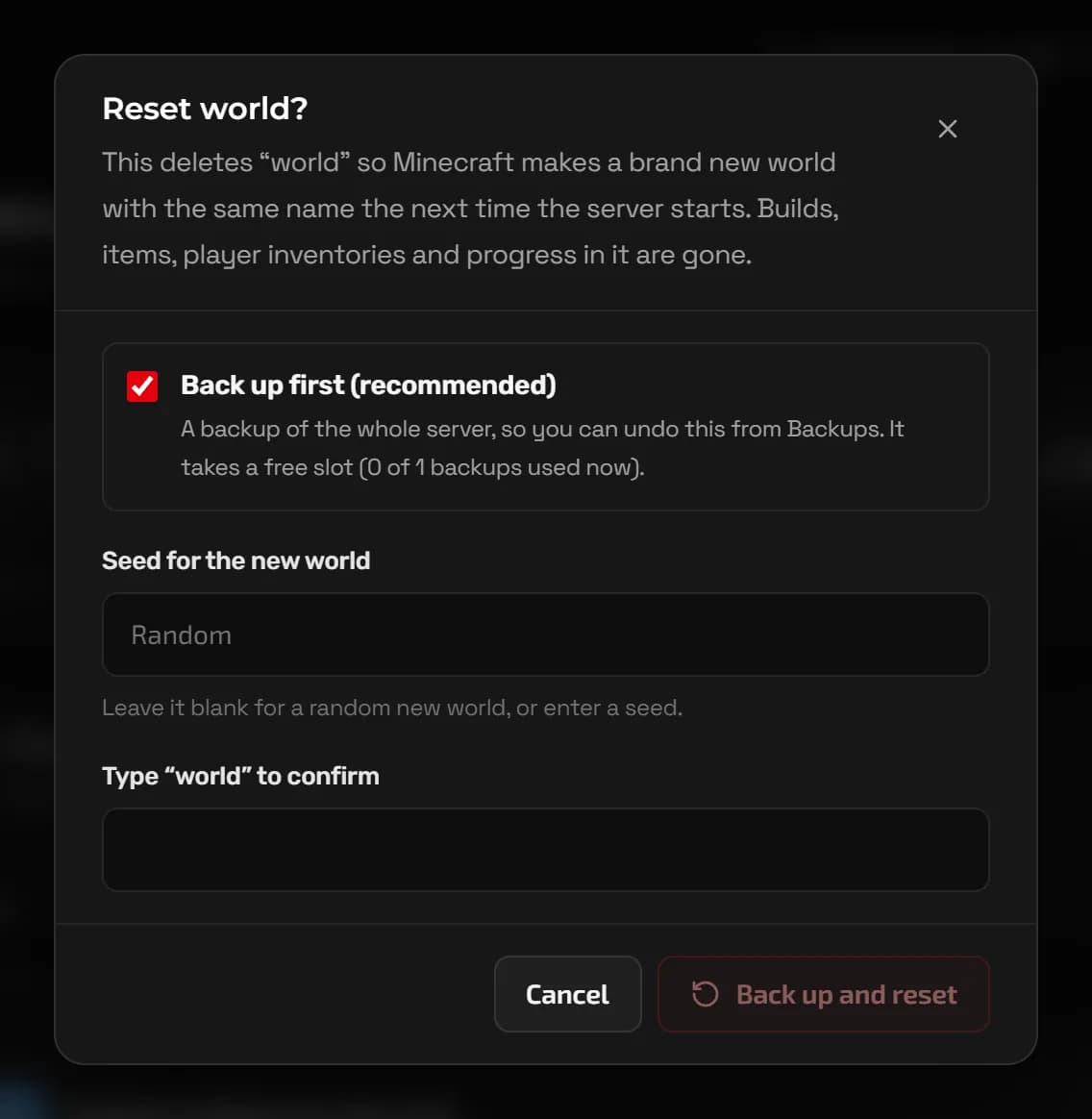
Reset a Minecraft world, or wipe a Rust map, without hunting through files. It offers a backup first, ticked by default, so you can change your mind.
- Back up first, on by default
- Pick a seed for the new world, or leave it random
Files and SFTP
File manager and SFTP
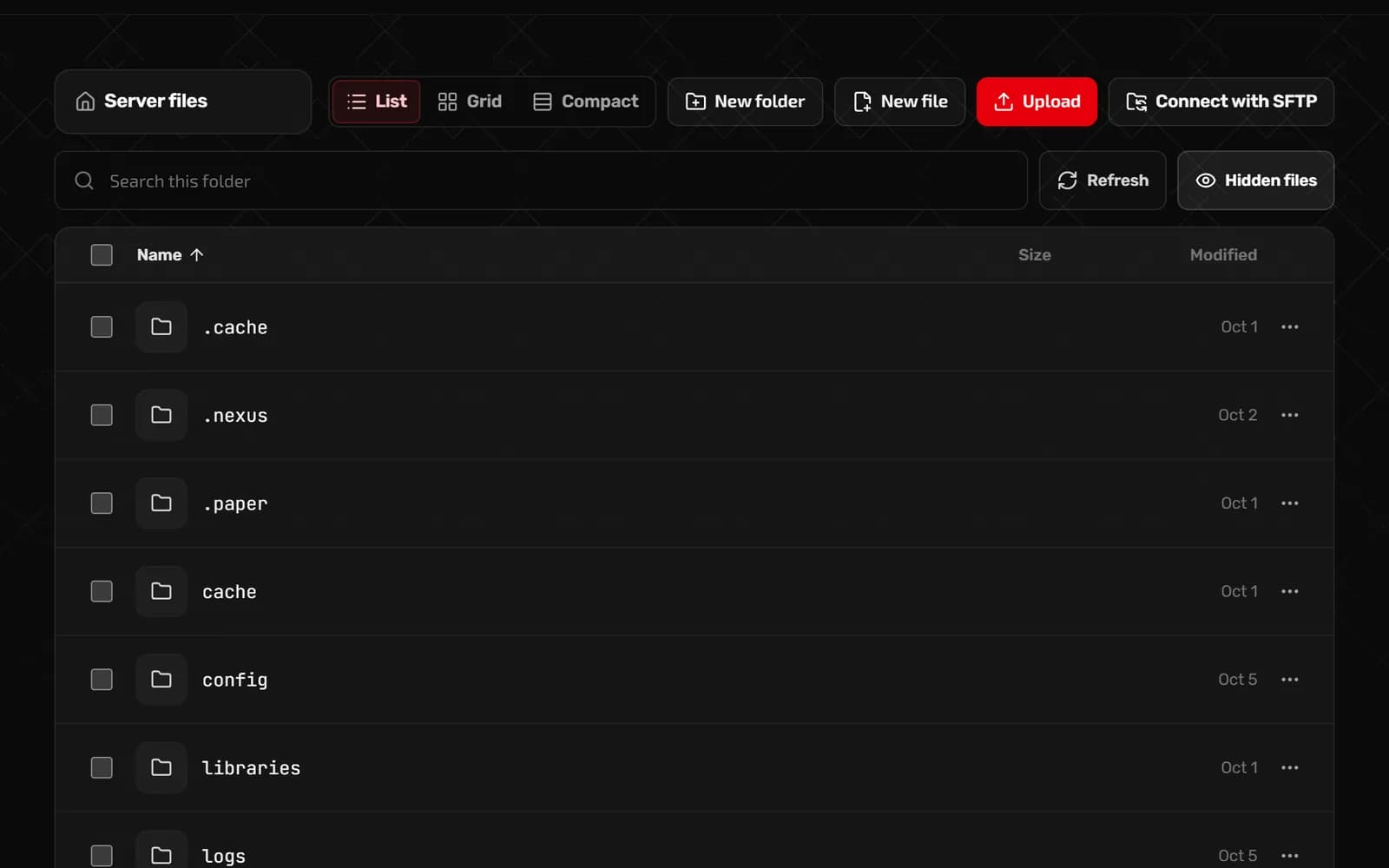
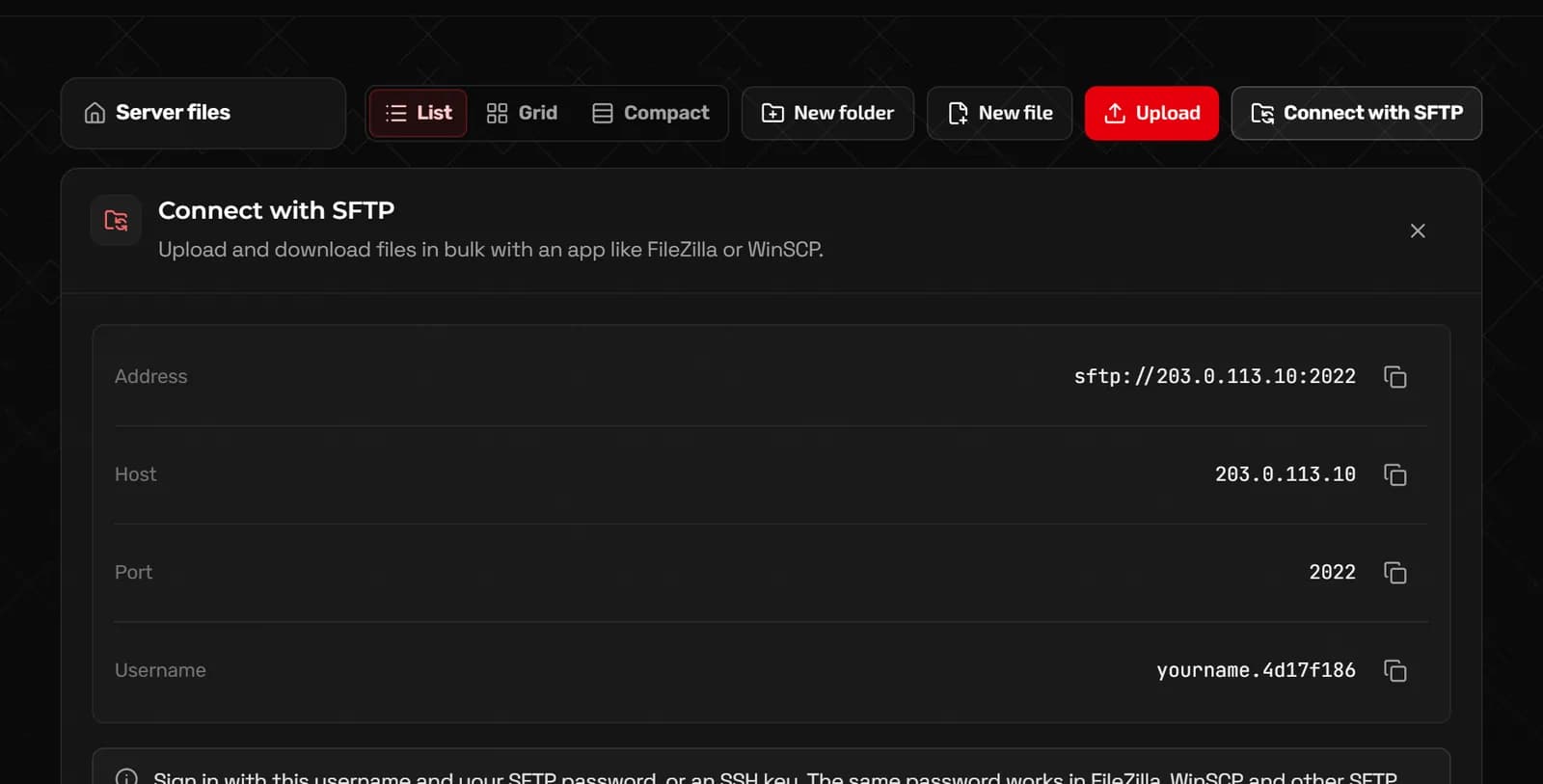
Edit configs in your browser, upload worlds and mods, and unzip archives without leaving the panel. For big uploads, connect an SFTP app like FileZilla or WinSCP.
- Edit files in the browser
- Upload, download, rename, move, archive and extract
- Connect with SFTP from the Files page, with your own SFTP password or an SSH key
Schedules
Schedules
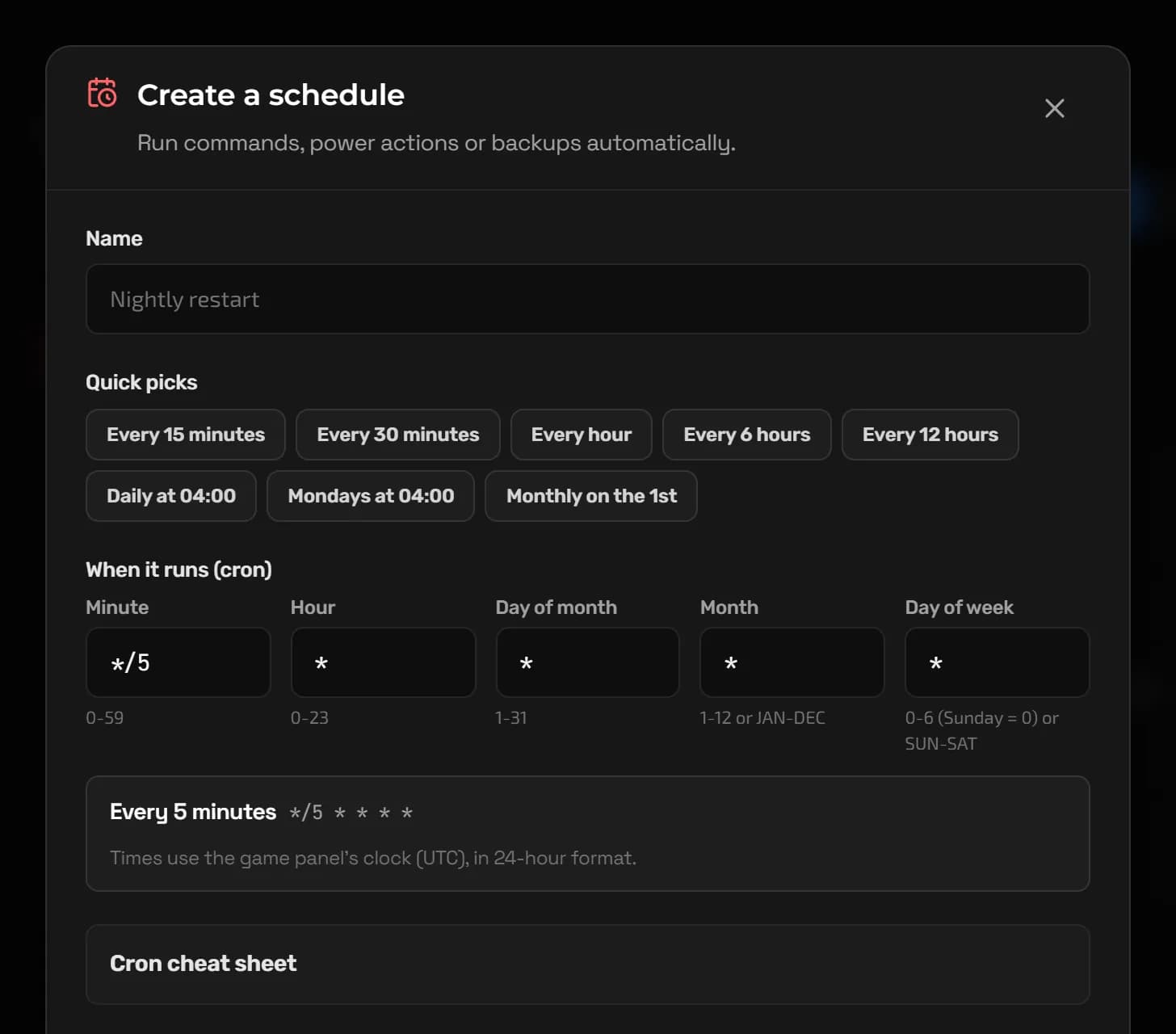
Restart every night, back up before the weekend or post a message to players: schedules run tasks at the times you set, even when you are not online.
- Tasks can send a command, start, restart or stop the server, or make a backup
- Quick picks like every hour or daily at 04:00, or your own cron timing
- Only run while the server is online, if you like
Tools for your game
Pages made for the game you play
Popular games get their own pages, with the settings, mods and admin jobs that game needs, in plain words. Every game still gets the console, files, backups and schedules.
Minecraft
Game settings
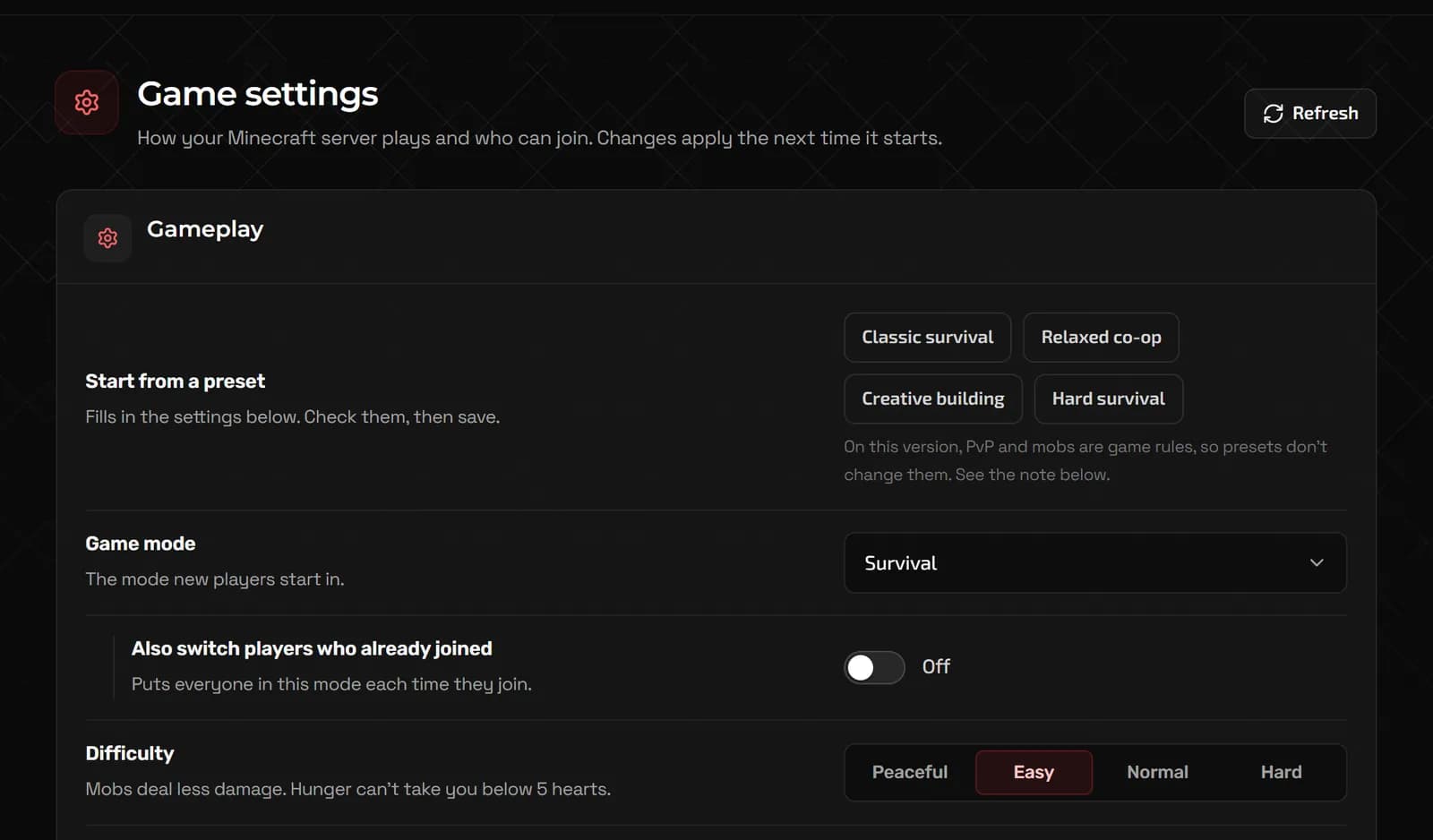
Presets, game mode, difficulty, who can join, view distance and the server list message, without editing server.properties.
Valheim
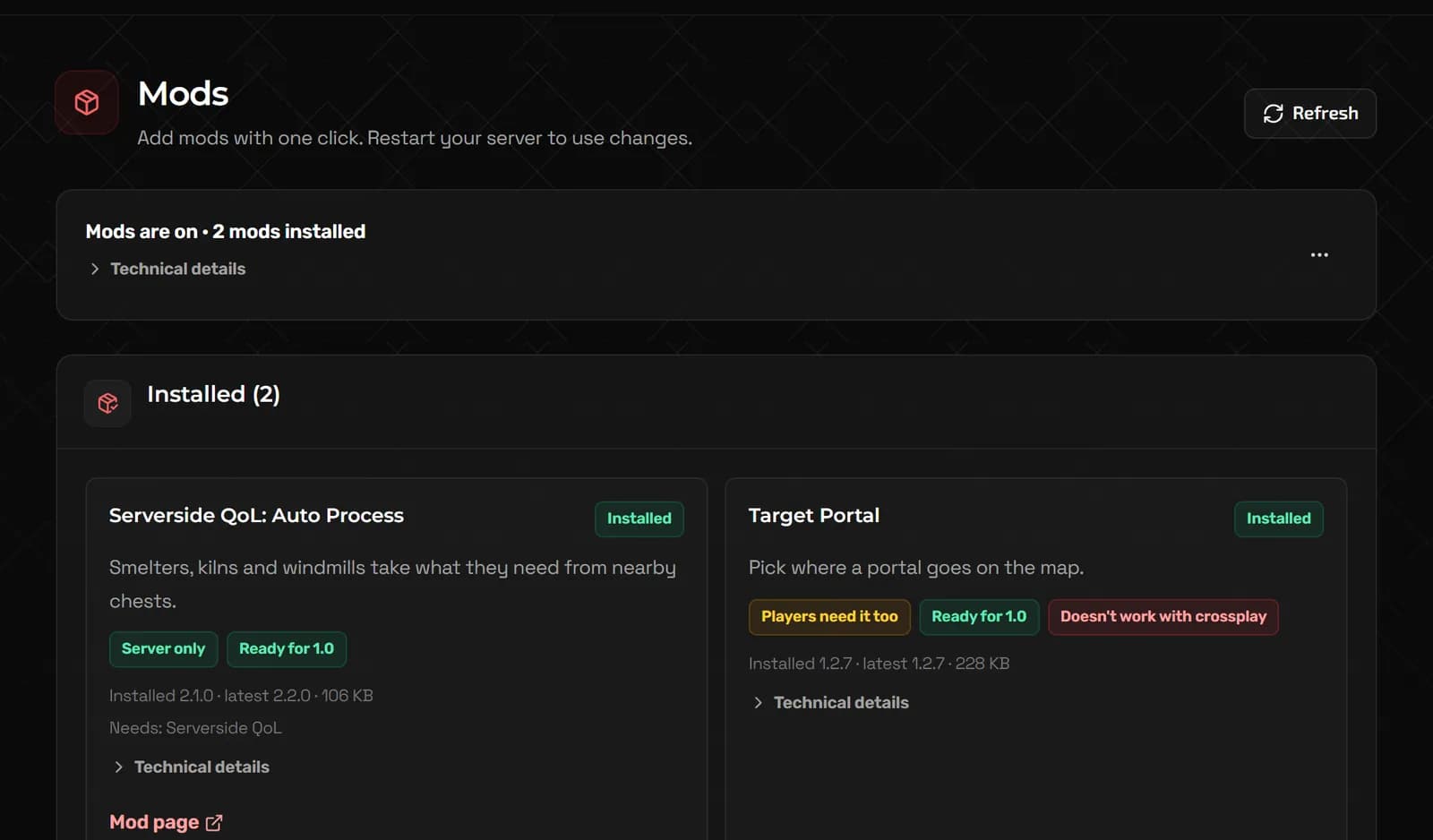
Mods
One-click mods, grouped by whether players need them too, with crossplay and Valheim 1.0 compatibility shown on each.
Palworld
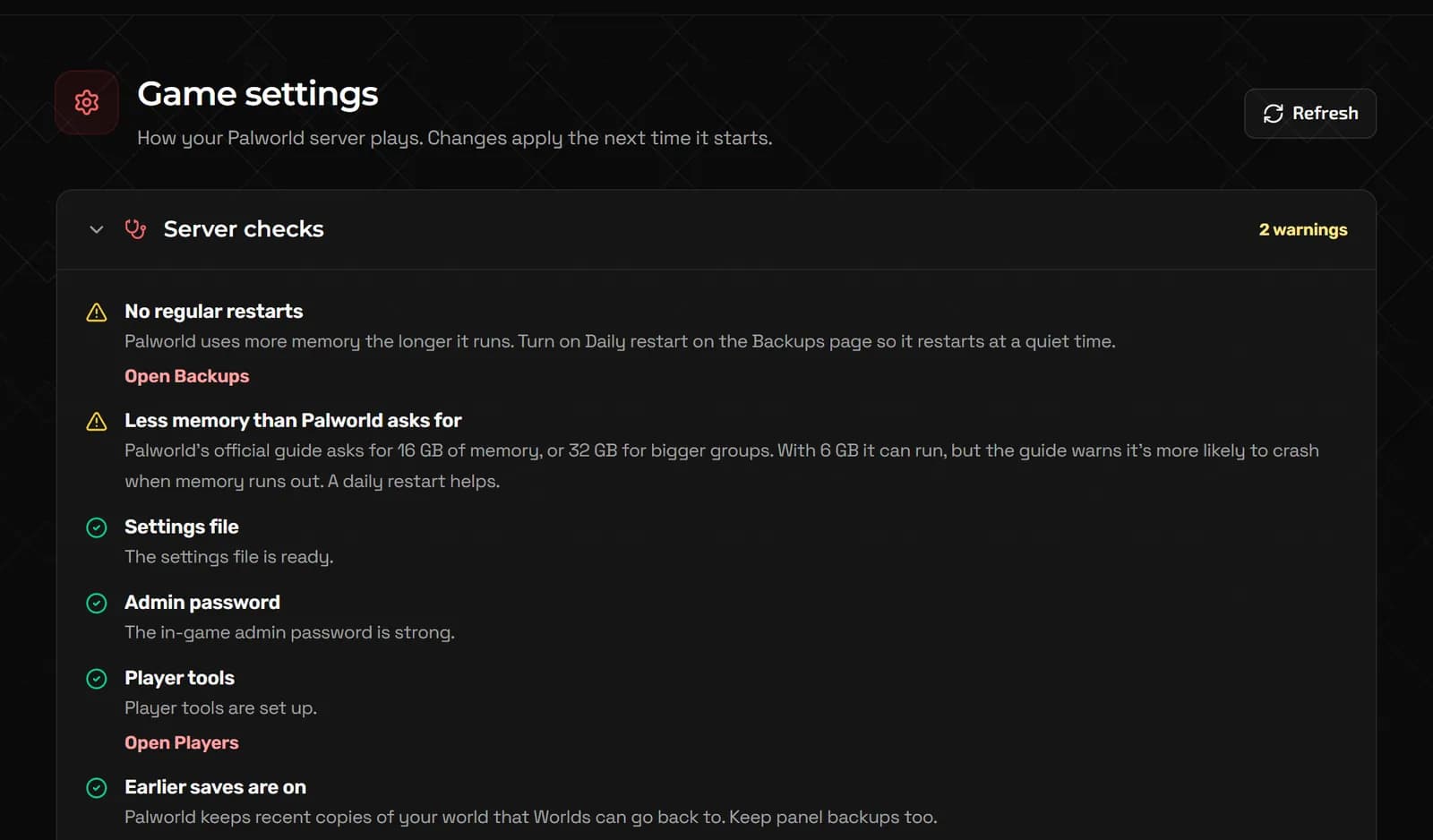
Game settings
Server name, passwords, who can play (Steam, Xbox, PlayStation), play style presets and the main rates in plain words.
7 Days to Die
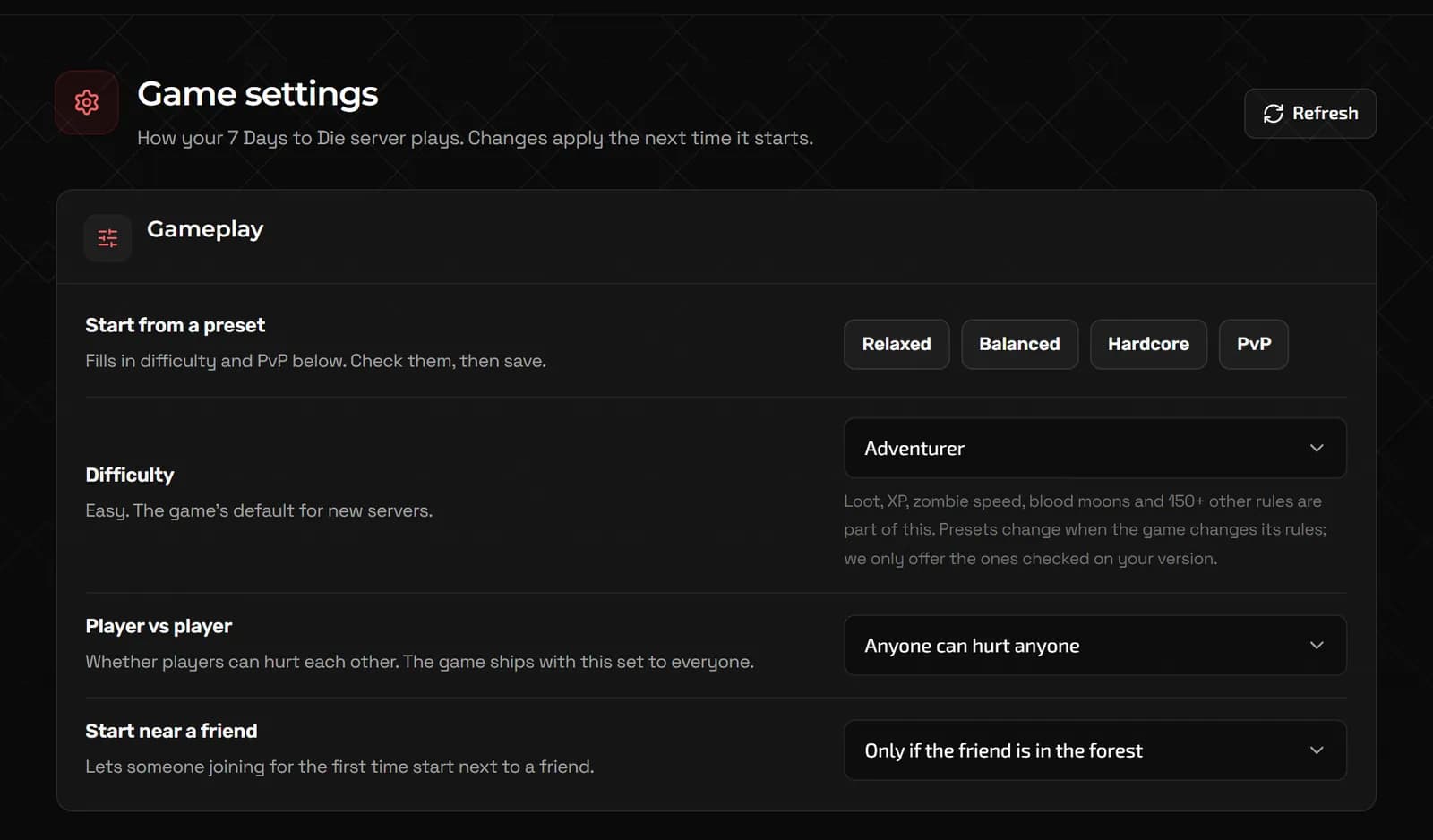
Game settings
Presets for difficulty and PvP, where new players start, and the rules your server last started with.
Garry's Mod
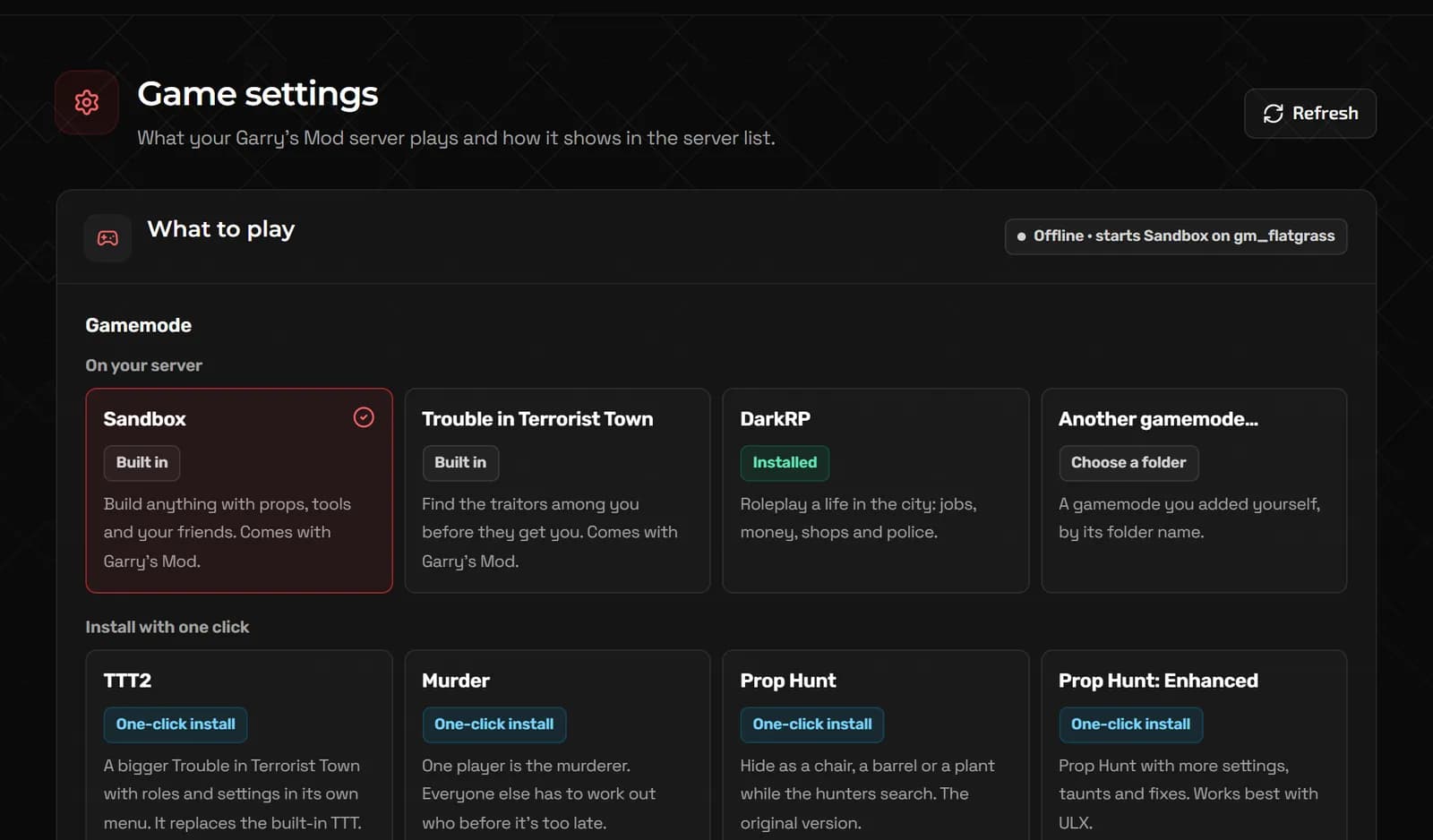
Game settings
Pick a gamemode or install one with a click (TTT2, Prop Hunt, Murder and more), the starting map, slots and your Steam token.
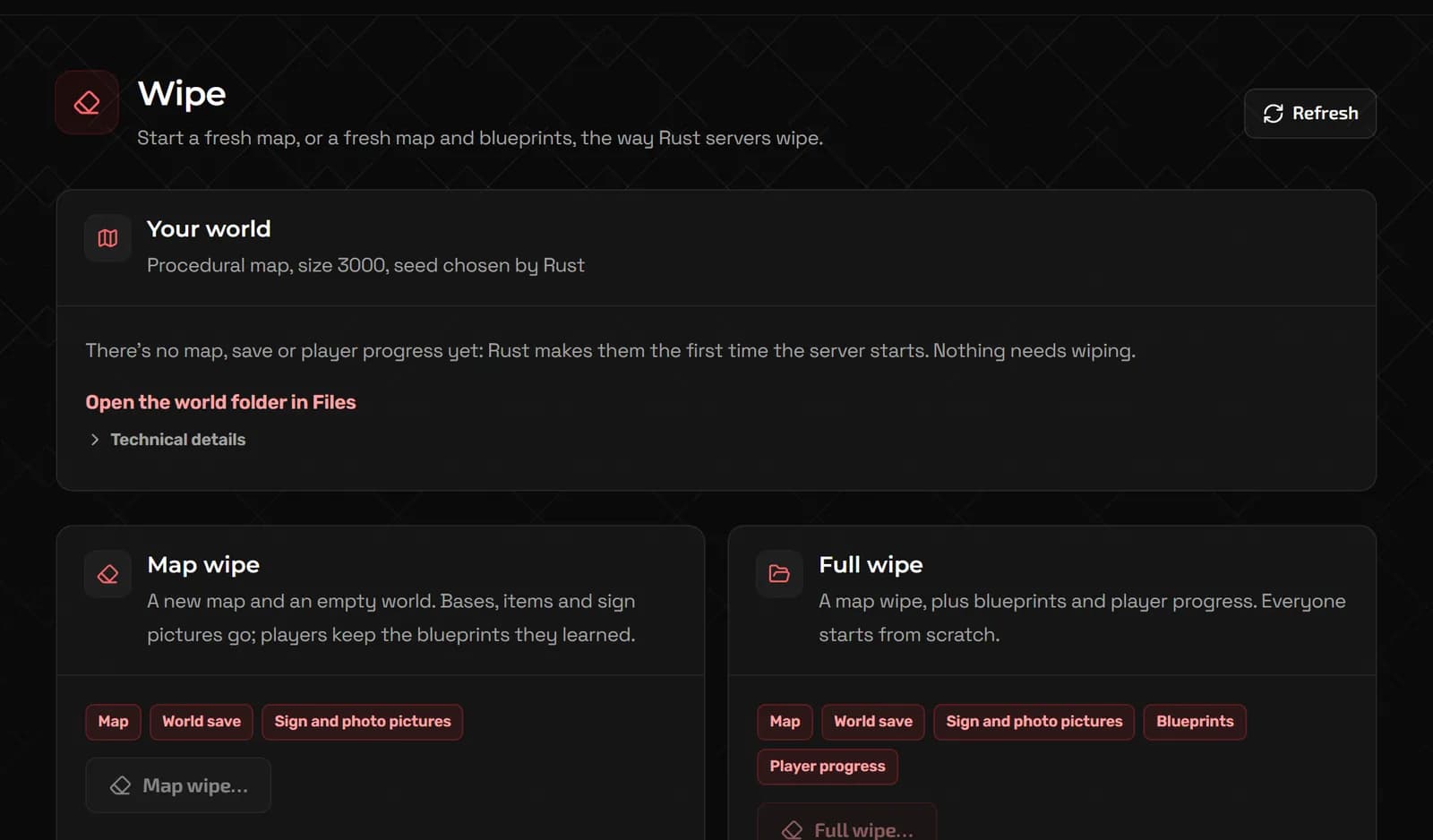
Rust
Wipe
A map wipe or a full wipe with blueprints, and a clear list of what is always kept.
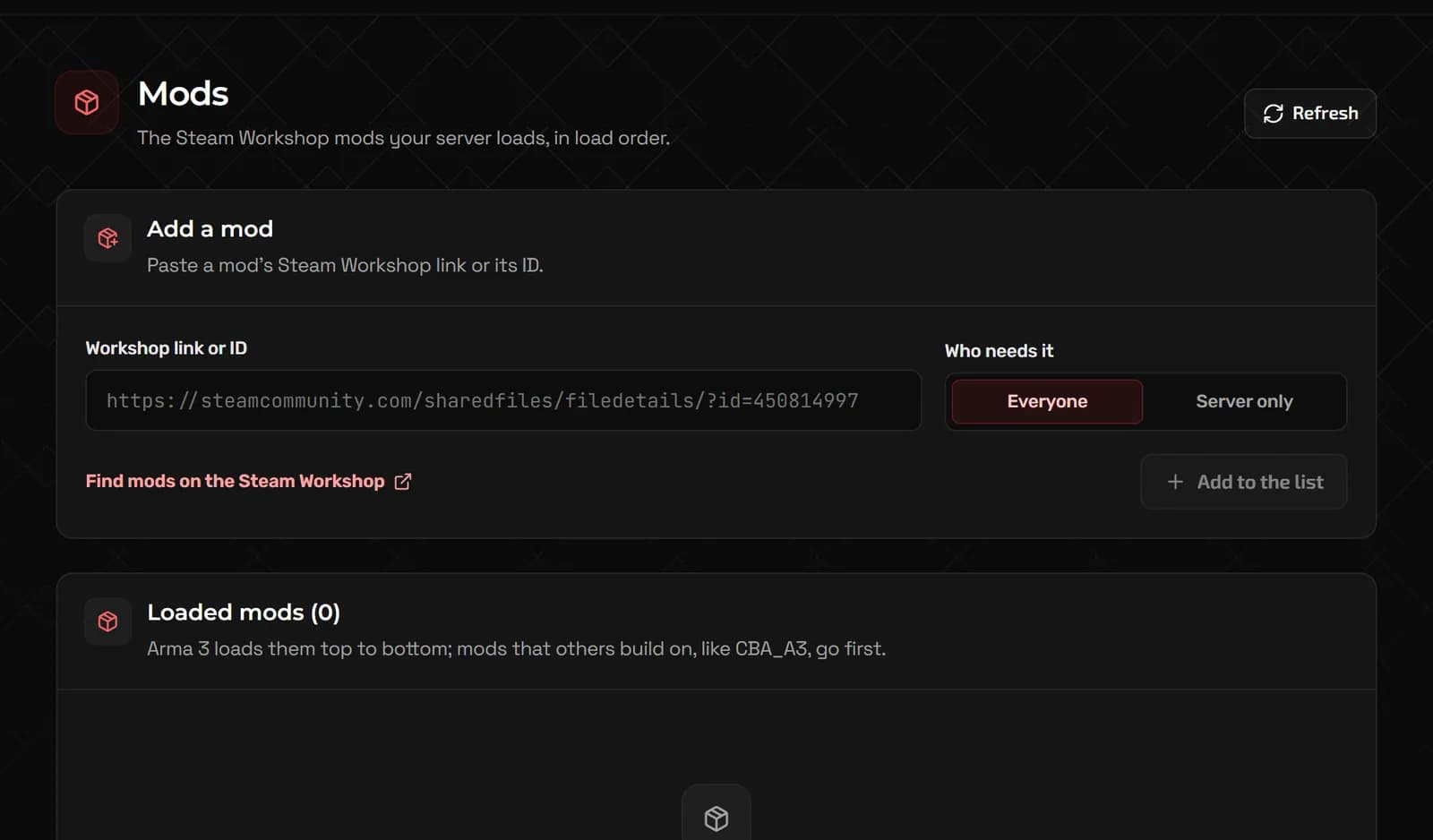
Arma 3
Mods
Add Steam Workshop mods by link, choose who needs each one, and see them in load order.
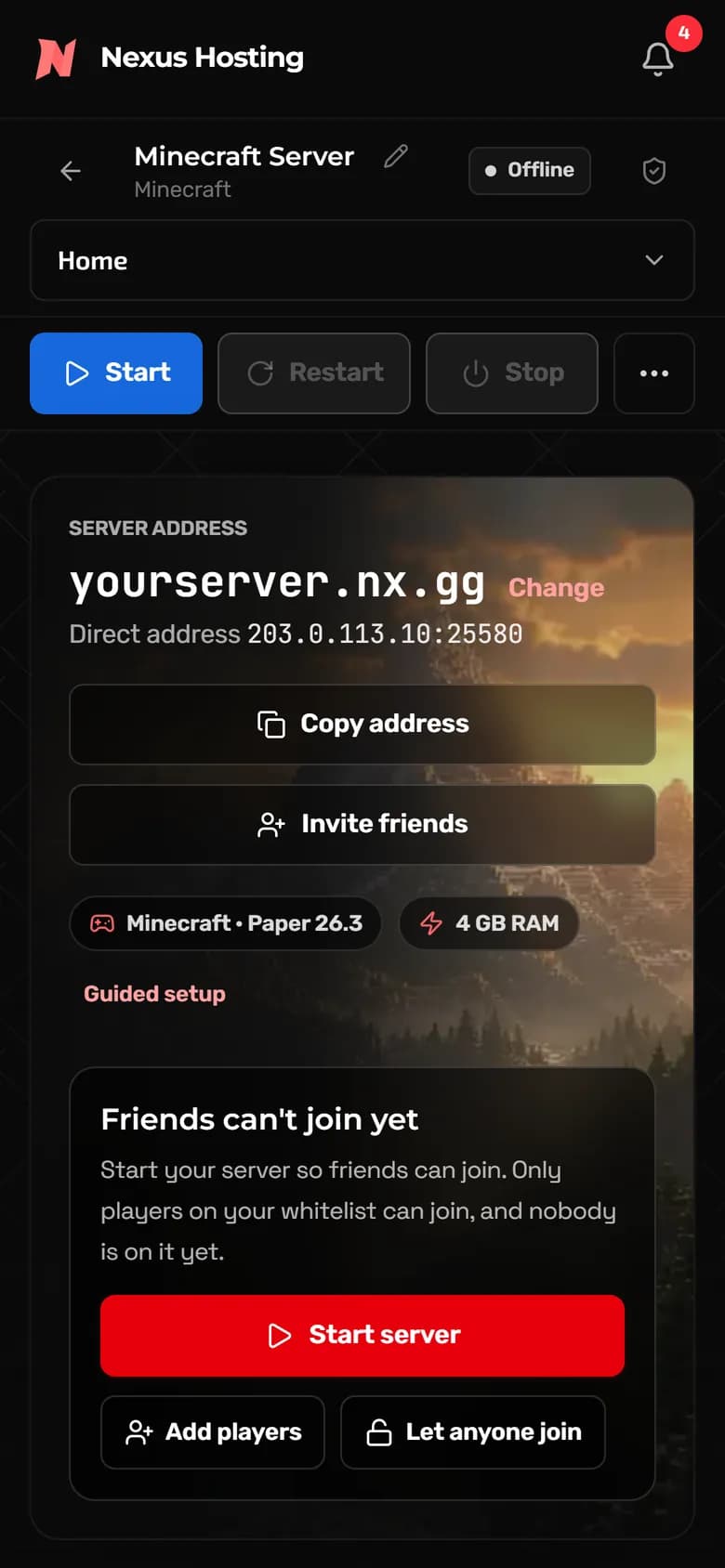
On your phone
Run it from your phone
The panel works in your phone's browser, laid out for a small screen, so a quick restart never has to wait until you're home.
- Start, restart or stop your server
- Check the console and who is online
- Change settings and make a backup
- No app to install
FAQ
Game panel questions
Is the game panel included with my server?
Yes. Every NEXUS game server comes with it. There is nothing extra to buy or install.
How do I open it?
Sign in to the NEXUS client area and open your game server. Everything on this page is right there, next to your billing and support tickets.
What is the difference between Simple and Advanced view?
Simple view shows the everyday pages in plain words: Home, Console, Players, Game settings, Backups, Version, Files and your game’s own pages. Advanced view adds every other tool, like Schedules, Users, Databases, the Server importer, Network and Startup. Switch between them from the sidebar.
Do all games get the extra tools?
Every game gets the console, files, backups, schedules and the Server importer. Many games also get their own pages, like the ones above for Minecraft, Valheim, Palworld, 7 Days to Die, Garry’s Mod, Rust and Arma 3.
Can friends help run my server?
Yes. Invite them from Users and choose what they can do. They sign in with their own free NEXUS account, only see what you allow, and never see your billing or other services.
Can I bring my server from another host?
Yes. Use the Server importer to copy your files over SFTP or FTP, or open a ticket and our staff will move it for you for free.
Does it work on my phone?
Yes. It works in your phone’s browser, so you can start or restart your server, use the console and change settings from anywhere. There is no app to install.
Ready to play?
Pick a Game.The Panel Comes With It.
Every NEXUS game server includes the panel you just toured. Choose your game, then set it up, mod it and invite your friends from here.