Let Bedrock Players Join Your Java Minecraft Server (Geyser and Floodgate)
Minecraft Java and Bedrock are separate games that cannot normally play together. Geyser bridges them: it runs on your Java server and translates for Bedrock players on phones, tablets, Windows and consoles. Floodgate, its companion, lets those players join without owning a Java account. This guide sets both up on a NEXUS server using the panel's Plugins and Mods pages.
On this page (7 sections)
Geyser and Floodgate are free, third-party projects from GeyserMC. They work well for most servers, but some Java features (certain modded blocks, some plugin menus) do not translate perfectly, so test with a Bedrock player before you announce it.
Before you start
- Server software: Paper (plugin versions) or Fabric (mod versions) are the simplest. Geyser also has versions for NeoForge and for proxies such as Velocity. Vanilla cannot load Geyser.
- Minecraft version: Geyser follows the current Java and Bedrock releases. Run a recent Java version, or add ViaVersion on Paper if you need an older one.
- Bedrock players need to be on a current version of Bedrock Edition.
Not set up yet? Install Paper first with the Version page, as described in our guide to making a Minecraft server.
Step 1: Install Geyser and Floodgate
- Stop the server and click Create backup on the Backups page.
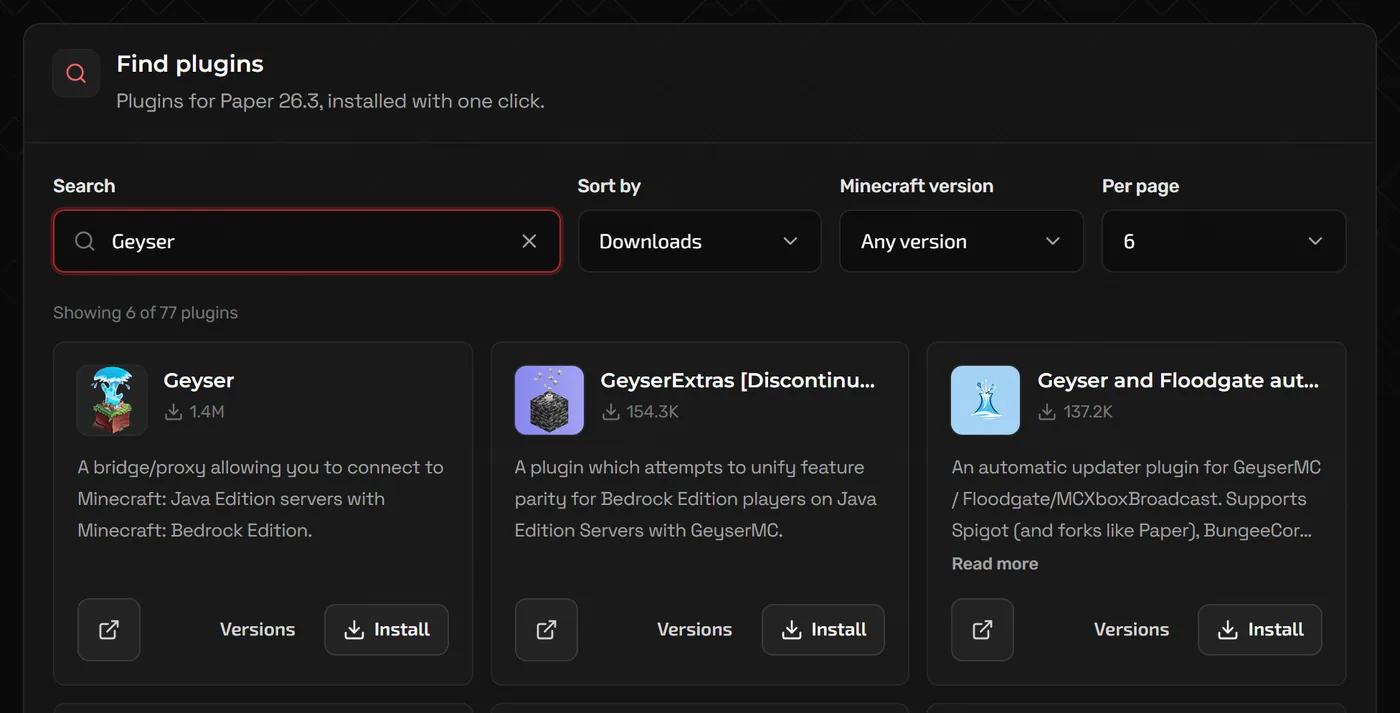
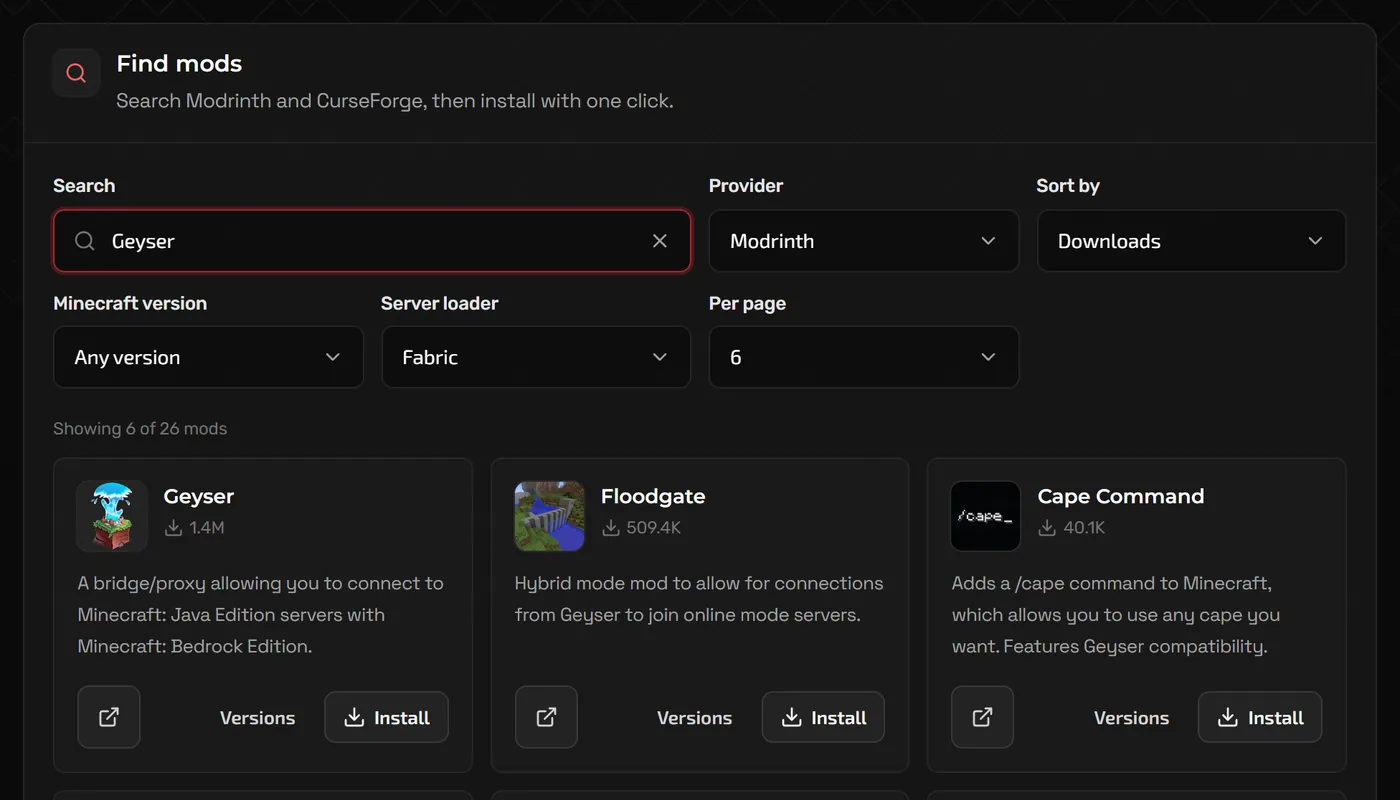
- On Paper, open Plugins, search for
Geyserunder Find plugins and click Install on Geyser itself. On Fabric, open Mods, search forGeyserunder Find mods, and install Geyser and Floodgate. - Install Floodgate. On Paper, if it is not in the plugin results, download the Floodgate jar for Spigot/Paper from geysermc.org and upload it to the
pluginsfolder with Files. - Start the server once so both create their config folders, then stop it again.
Step 2: Share one port for Java and Bedrock
Bedrock connects over UDP, by default on port 19132. Your NEXUS server has one address and port: the port is the number after the colon in the address on the Home page (with a free subdomain, in the Direct address under it; in the Advanced view, Network shows it under Players join on). Because Java uses TCP and Bedrock uses UDP, both can share the same port number, so you do not need a second one.
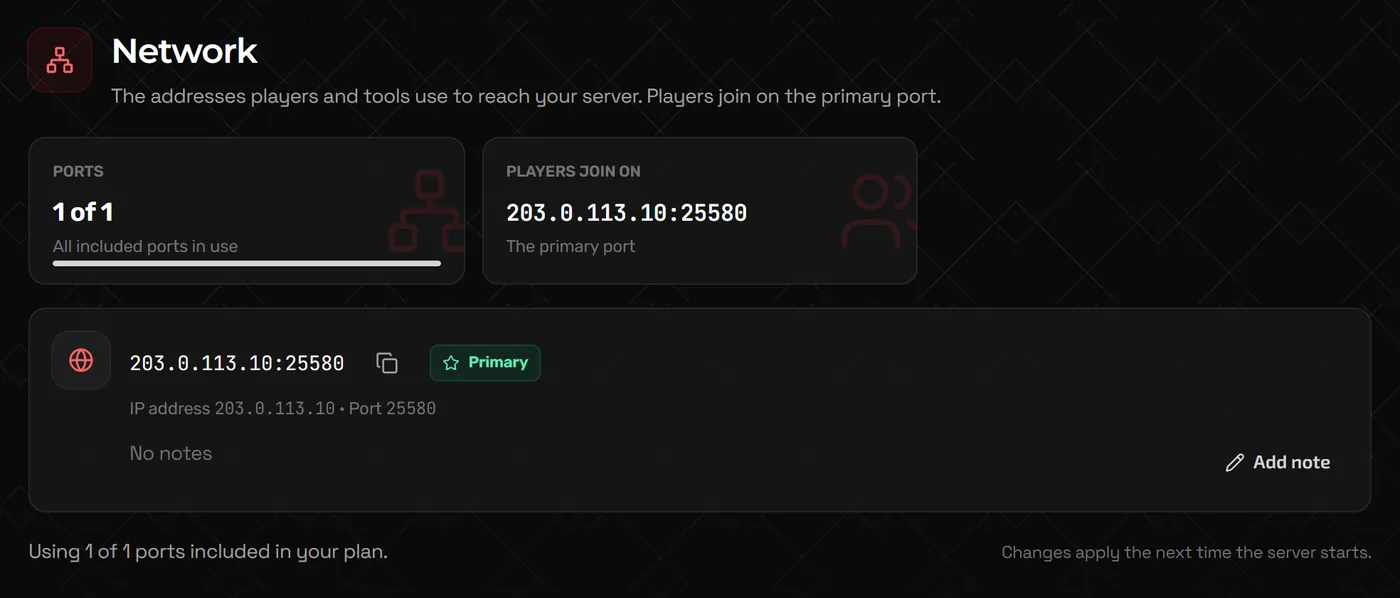
Open Geyser's config.yml in Files (on Paper it is in plugins/Geyser-Spigot; on Fabric in config/Geyser-Fabric) and set the Bedrock port to your server's port:
bedrock:
  # Use your server's port: the number after the colon in its address
  port: 38085
  # Alternatively: clone-remote-port: true copies the Java port automatically
java:
  auth-type: floodgate
Tip: Key names can move between Geyser releases. If your config file looks different, look for the Bedrock "port" setting and the "clone-remote-port" option and set them the same way.
Step 3: Turn off Require signed chat
Bedrock players cannot sign chat messages the way Java clients do, so with signed chat enforced they are disconnected or cannot chat. On Game settings, open More settings and turn off Require signed chat (enforce-secure-profile); the panel notes this is needed for Bedrock players (Geyser). Save, then start the server.

Leave Require real Minecraft accounts (online-mode) on. Floodgate checks Bedrock players with their Xbox account instead, so you keep account checks for everyone.
Step 4: Connect from Bedrock
- Start the server and check the Console: Geyser logs a line saying it has started on your port.
- In Bedrock, open Play, go to the Servers tab and choose Add Server.
- Enter the server's IP (or your free
.nx.ggsubdomain from Server address) in Server Address, and your server's port (see Step 2) in Port. - Java players keep using the same address as before.
Warning: Xbox, PlayStation and Switch players cannot add custom servers from the Bedrock menu, so Geyser alone does not get console players in. Phone, tablet and Windows players can join directly.
Whitelists, ops and player names
- Floodgate gives Bedrock players a prefix so their names cannot clash with Java names. By default it is a dot, so the Bedrock player Steve appears as
.Steve. - To whitelist a Bedrock player, use Floodgate's command in the Console:
fwhitelist add Steve. The normalwhitelist addcommand only knows Java accounts. - Op and ban Bedrock players with their prefixed name, for example
op .Steve. - Geyser and Floodgate update often. Check Plugins or Mods for updates after each Minecraft or Bedrock release.
FAQ
Do Bedrock players need a Java account?
Not with Floodgate installed. Without Floodgate, each Bedrock player has to sign in with a Java account through Geyser.
Why do Bedrock players get "Unable to connect to world"?
Usually the Bedrock port in Geyser's config does not match the server's port, the server is not running, or Geyser failed to start. Check the Console for Geyser's start-up line, and see our connection troubleshooting guide.
Can Bedrock players join a modded server?
Only partly. Geyser can translate a server that uses Fabric or NeoForge, but Bedrock players will not see modded blocks and items correctly. It works best on Paper or lightly modded servers.
Can I run Geyser on a Bedrock server instead?
No. Geyser runs on Java servers and lets Bedrock players in. A Bedrock server cannot accept Java players.
Related guides
Minecraft Server Not Showing Up or Can't Connect? How to Fix It
Work through the usual causes in order, from the address and port to version, whitelist, account checks and crashes.
How to Make a Minecraft Server to Play With Friends
Java or Bedrock, how much RAM you need, the server.properties settings that matter, ops and whitelists, and how friends connect.
How to Install Mods on a Minecraft Server (Forge, Fabric, NeoForge)
Pick the right mod loader, install mods and modpacks, keep client-only mods off the server, and use plugins on Paper instead.