

Palworld Server Not Showing Up or Can't Connect? Fixes That Work
Palworld gives very little feedback when a join fails, so the same symptoms ("server not in the list", endless loading, "connection timed out") can have quite different causes. This guide goes through them in the order that solves most cases, using what the NEXUS Game Hosting Panel shows on each page.
On this page (8 sections)
For what each setting does, see Palworld server settings explained. This guide only covers getting players connected.
Check the server has finished starting
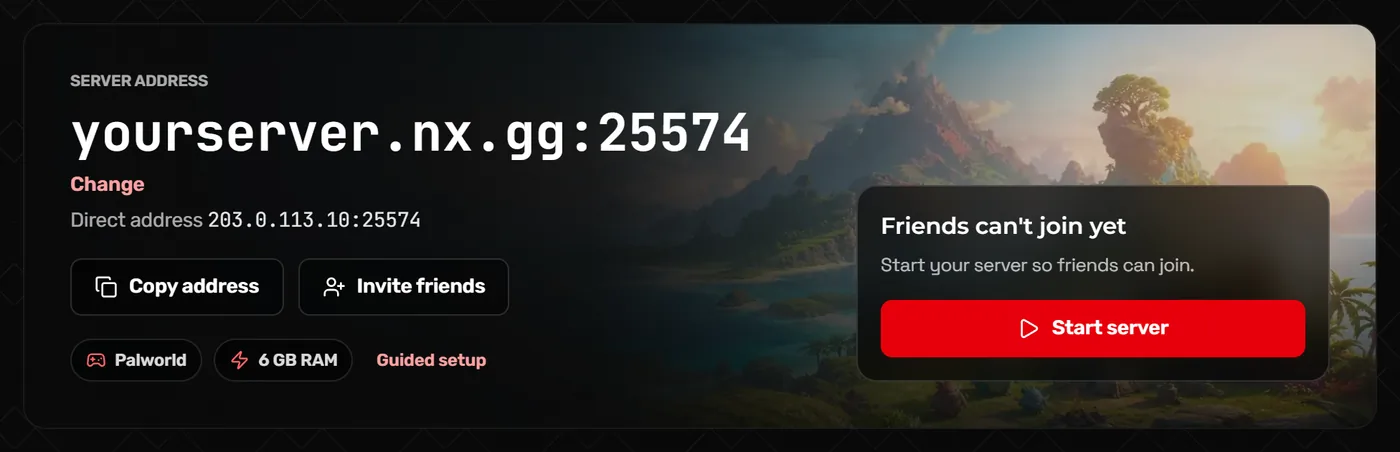
The card next to your address on the Home page says whether friends can join, and shows "Your server is online" once it is running. A brand-new server needs longer: the first start can take a few minutes. Players who try to join before then get a timeout, not an error.
Join by address first (PC)
The community server list is slow and unreliable for finding one particular server, so test with a direct connection first. If that works, the server is fine and only the list is the issue.
- Copy the address from the Home page with Copy address. It includes the port, for example
yourserver.nx.gg:25574. - In Palworld, choose Join Multiplayer Game.
- Paste the address into the box at the bottom of the server list and click Connect.
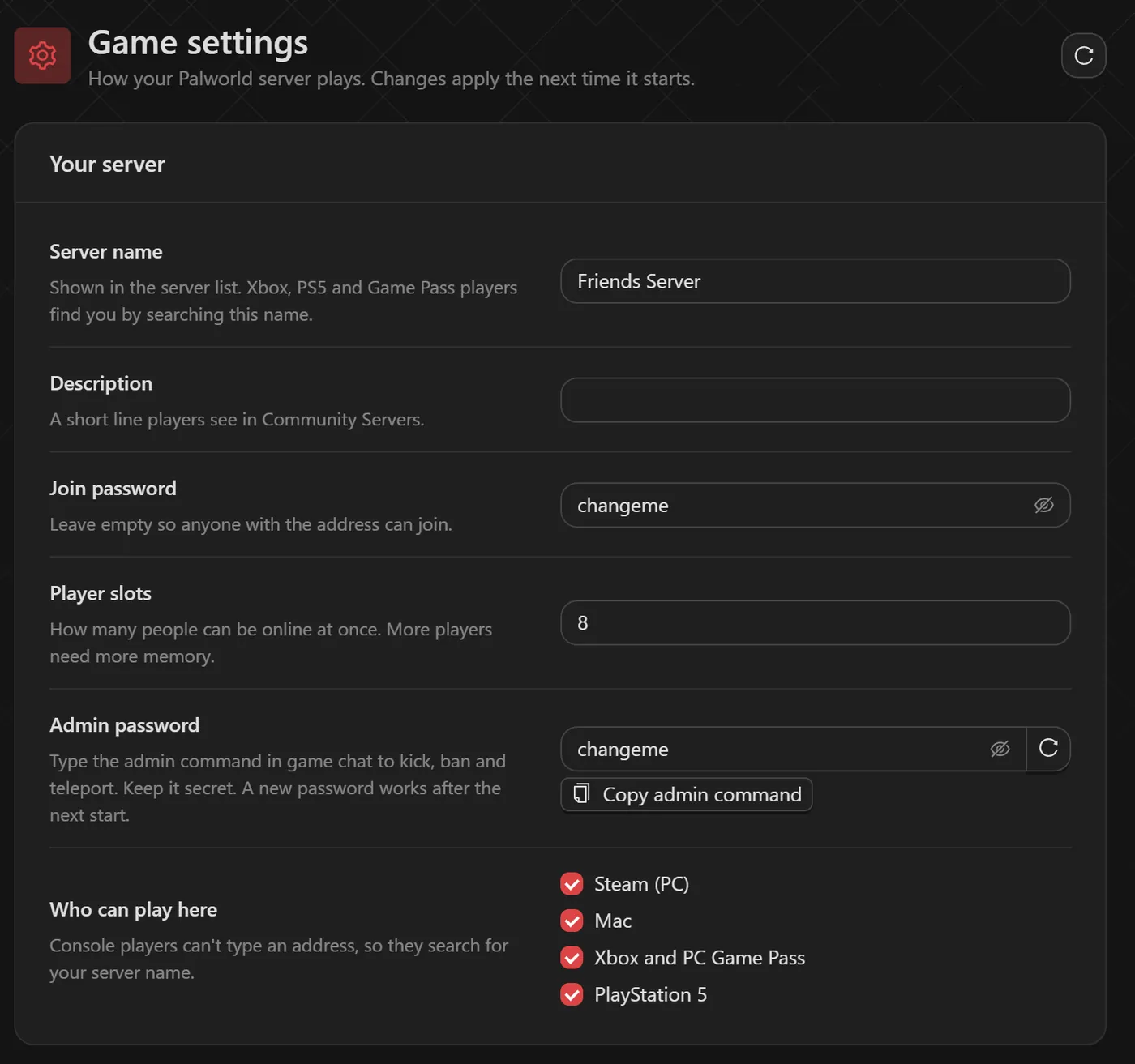
- Enter the join password if asked. What players need on Home shows whether one is set, with Show and Copy; change or clear it as Join password on Game settings.
Tip: Leaving off the port, or using the default 8211, is the most common reason a direct connect fails. Use the exact address the panel shows.
Server not in the Community Servers list
- The list holds thousands of servers. Search for your exact Server name from Game settings rather than scrolling.
- New servers and renamed servers can take a while to appear after a start.
- Players on Xbox, PS5 and PC Game Pass cannot type an address at all; they search for your server name. While the server runs, the Players page shows it under "Xbox, PS5 and Game Pass players search for", with Copy name, so a short, unusual name helps.
Console and Game Pass players cannot see the server
Open Game settings and check Who can play here: Steam (PC), Mac, Xbox and PC Game Pass, and PlayStation 5 can each be ticked. A platform that is not ticked cannot join, and What players need on Home lists the platforms that can. Save and restart after changing it.
Everyone, on every platform, must be on the same Palworld version as the server. Console updates sometimes land a little before or after Steam's, which can lock one side out for a short time after a patch.
Version mismatch after a Palworld update
If players are told their version does not match, or the server vanishes from the list right after an update, restart the server from the panel so it starts on the current Palworld release, and make sure every player has updated their game. If the mismatch remains after a restart, contact support with the version numbers each side shows.
Disconnects and crashes from low memory
Palworld's server uses more memory the longer it runs. When it runs out, the server crashes and everyone is disconnected, which players often report as a connection problem. Server checks on the Game settings page flags both risks for your server.
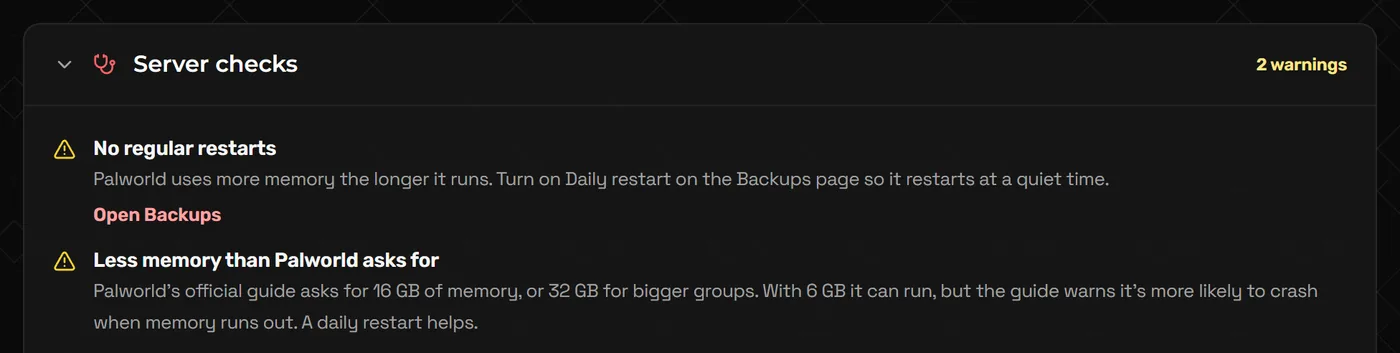
- Turn on Automatic restart on the Backups page so the server restarts once a day at a quiet time. Players get a five-minute warning.
- Lower Wild Pal numbers and Pals working at each base, or use Less lag on Game settings, which reduces both in one click.
- If crashes continue with a full server, move up a plan with Upgrade / Downgrade in the client portal. The panel notes that Palworld's official guide asks for 16 GB of memory, or 32 GB for bigger groups.
Other things that stop one player joining
- Server full: Player slots on Game settings sets the limit, up to 32.
- Banned: check the Banned tab on the Players page, which can unban people even while the server is stopped.
- Stuck on the loading screen: often a damaged character save. The NEXUS knowledge base explains how to delete a broken character so the player can start fresh.
FAQ
Do I need to open or forward ports?
No. A NEXUS server is already reachable at the address on its Home page. Port forwarding is only for servers hosted at home.
Why can Steam players join but Xbox players cannot?
Xbox and PC Game Pass must be ticked under Who can play here on Game settings, and Xbox players must search the server name because they cannot enter an address. Both sides also need the same game version.
Is there a free address I can give players instead of the IP?
Yes. Server address in the panel lets you claim a free subdomain that always points to your server. Console players still find the server by name.
How do I know the server is up before telling friends?
Join it yourself by direct connect. If that works, any remaining problem is with the community list, a player's platform setting or their game version.
Related guides
Palworld Server Settings Explained (PalWorldSettings.ini)
Where PalWorldSettings.ini lives, how to edit it without breaking it, what the important keys do, and how to use admin commands.
How to Install Valheim Server Mods with BepInEx
One-click mods, which ones players must install too, manual BepInEx uploads, crossplay limits and surviving Valheim updates.
How to Make a Minecraft Server to Play With Friends
Java or Bedrock, how much RAM you need, the server.properties settings that matter, ops and whitelists, and how friends connect.