
How to Install Valheim Server Mods with BepInEx
Almost every Valheim mod runs on BepInEx, a mod loader that has to be on the server and, for most mods, on every player's game too. The NEXUS Game Hosting Panel installs BepInEx and a curated set of mods with one click and labels each one with who needs it, which removes most of the guesswork. This guide covers that page, adding mods it does not list, and keeping a modded server working through Valheim updates.
On this page (6 sections)
Setting up the server itself (name, password, crossplay, worlds) is in our Valheim server hosting guide.
The Mods page
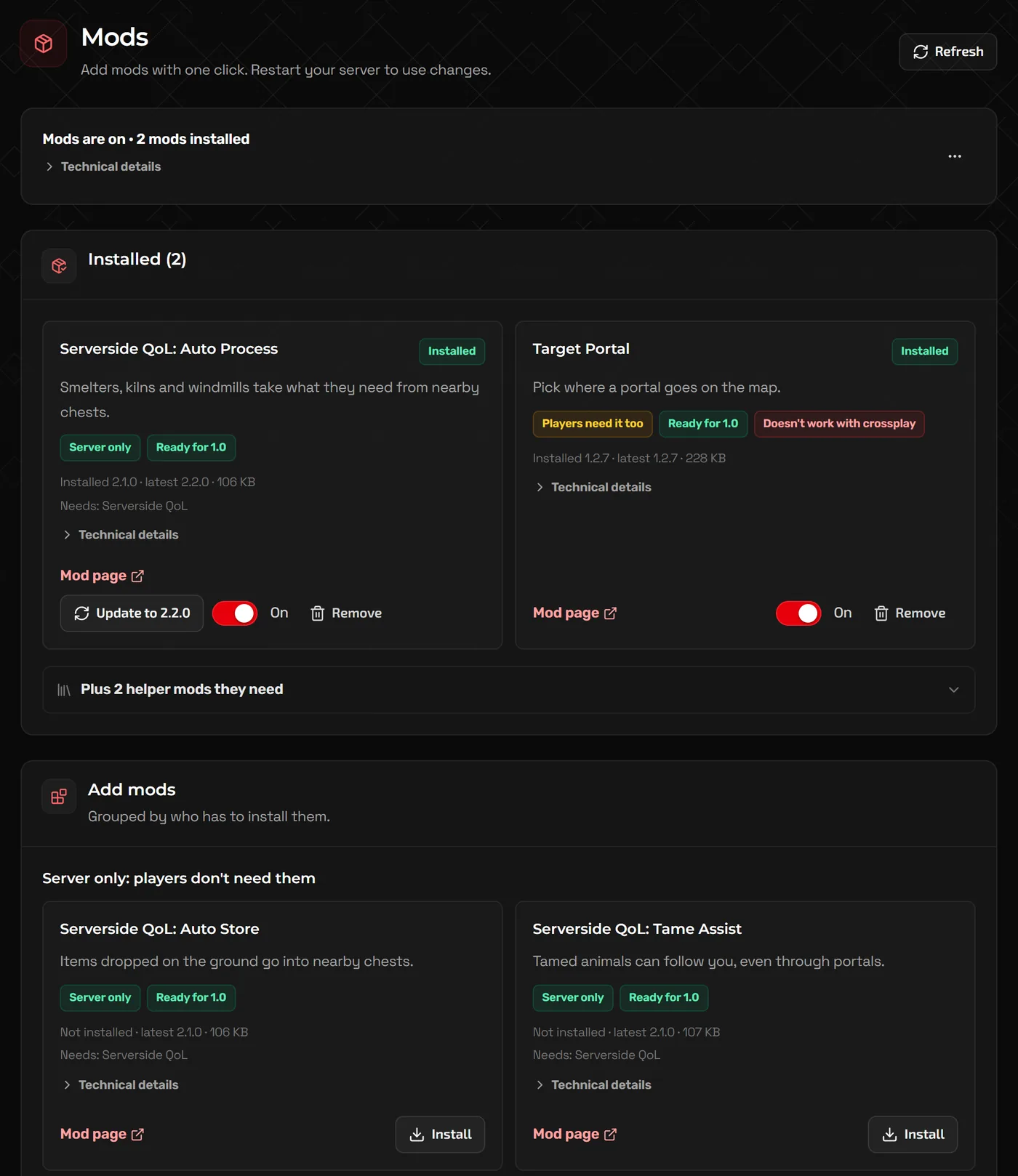
Open Mods in the panel. The bar at the top shows whether mods are on, the BepInEx version and how many mods are installed. Installed comes first: your mods, then any added by hand, then the helper mods they need. Add mods below it lists the rest, grouped by who needs them:
Server only: players don't need theme.g. Server only- Server-side mods. Players join with an unmodded game, so these are the safest to add to an existing group.
Admin tools: admins install them tooe.g. Admins need it too- Tools for whoever runs the server, such as extra F5 console commands. Admins install the same mod on their own game.
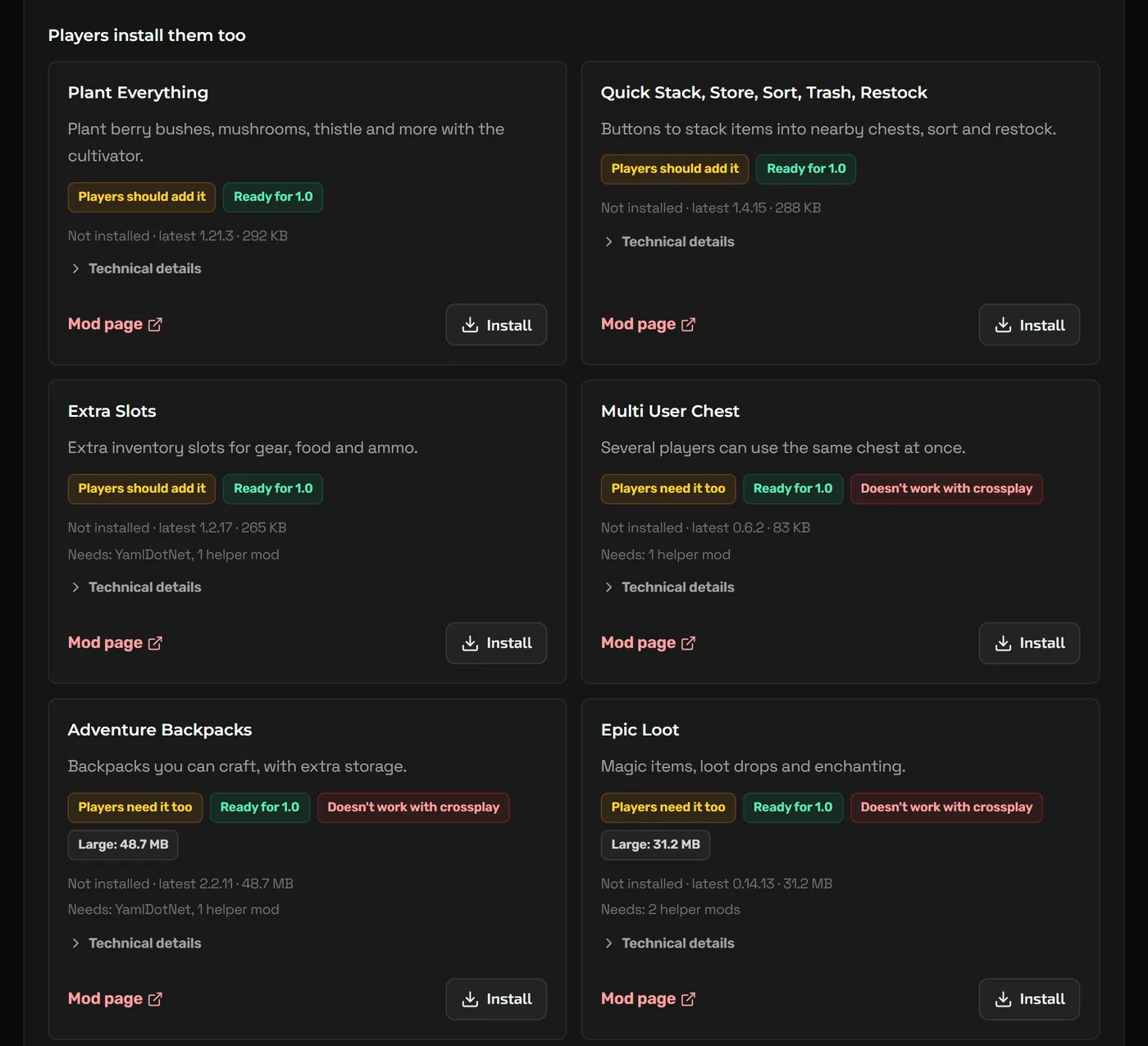
Players install them tooe.g. Players need it too- New items, building pieces, inventory changes and so on. Every player needs the same mod at the same version, or they cannot join or will see broken items.
Players install them tooe.g. Players should add it- Work from the server alone, but play better when players have them too.
Other labels to watch: Ready for 1.0 (built for the current Valheim), Doesn't work with crossplay, and Large with the download size.
Install a mod
- Click Create backup on the Backups page. Some mods change the world in ways you cannot undo by removing them.
- On Mods, check the bar at the top says Mods are on, then click Install on the mod.
- Restart the server. As the page says, changes take effect on restart.
- Read the Console as it starts. The panel prints whether mods are on, and BepInEx lists each mod it loads.
Installed mods have an on/off switch, so you can disable one without removing it, a Remove button, and an Update to button with the new version number when one is available.
Getting players onto the same mods
For any mod marked Players need it too, every player has to install it at the same version. The easiest way is a mod manager:
- Each player installs r2modman or the Thunderstore Mod Manager and creates a Valheim profile.
- You install the same mods in your own profile, then export it as a profile code from the manager's settings and share the code with your group.
- Players import the code, and everyone launches Valheim through the mod manager with Start modded.
Warning: Players on Xbox, PlayStation and other consoles cannot install mods. If your group uses crossplay, stick to Server only mods and avoid any marked Doesn't work with crossplay.
Adding a mod the page does not list
You can add other BepInEx mods from Thunderstore by hand. Check the mod is built for your Valheim version and whether it is server-side, client-side or both.
- Download the mod from Thunderstore and unzip it on your PC.
- Stop the server and upload the mod's
.dllfile (and any folder it ships with) intoBepInEx/pluginswith Files, or over SFTP. For a mod that is a single.dll, Upload a mod (.dll) under Advanced at the bottom of the Mods page puts it there for you. - Start the server. Most mods create a settings file in
BepInEx/configon the first start; stop the server before editing it.
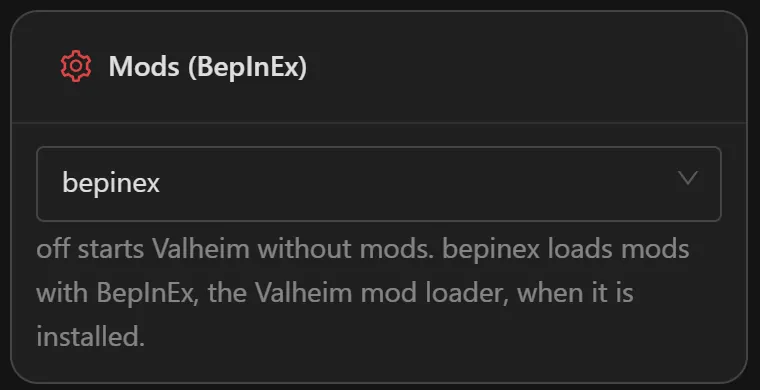
Mods only load when the server starts with BepInEx. In the Advanced view, Startup has a Mods (BepInEx) option: off starts Valheim without mods and bepinex loads them. If it is set to bepinex but the loader files are missing, the server prints a message and starts without mods.
Surviving Valheim updates
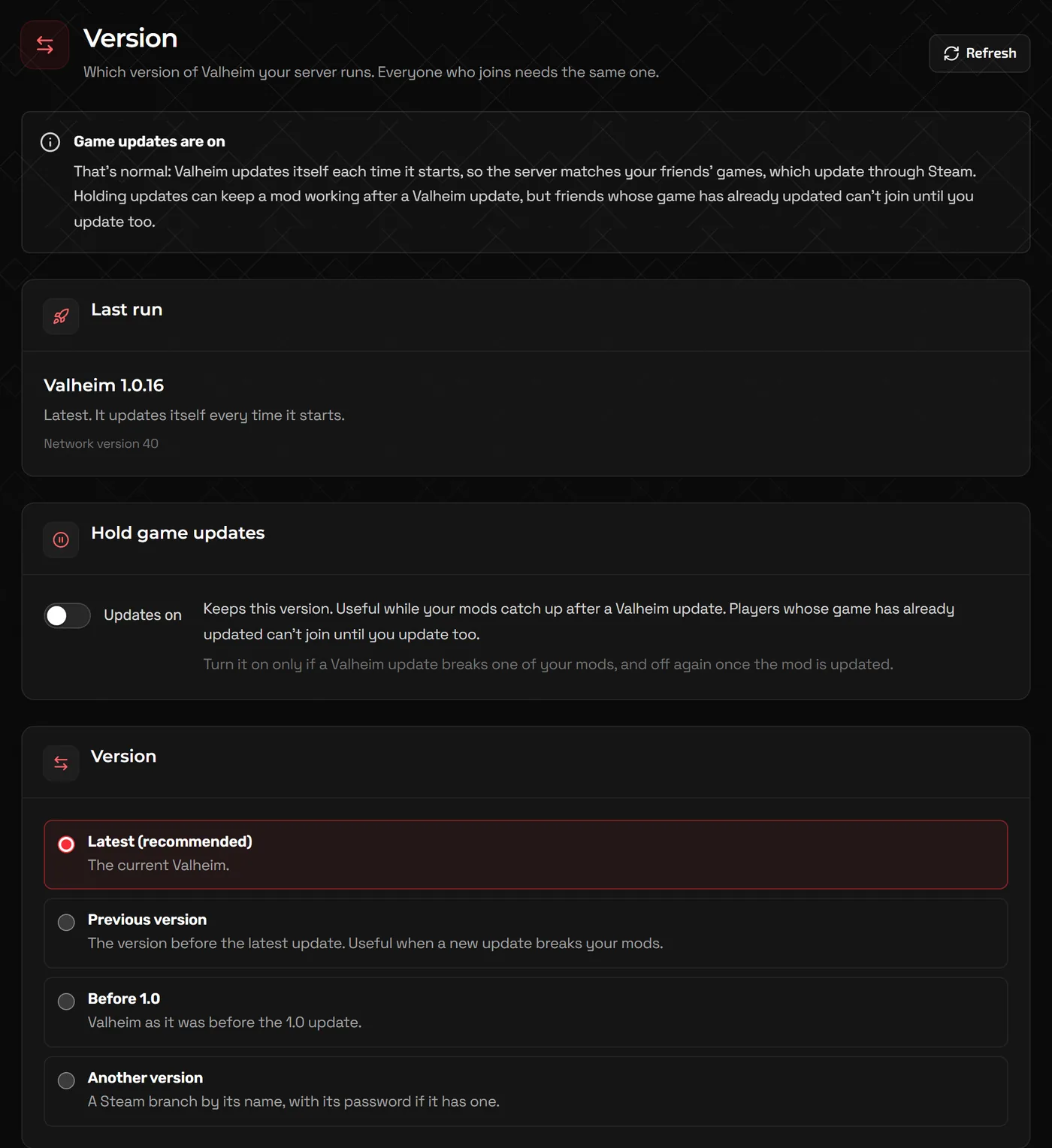
When Valheim updates, mods often break until their authors catch up, and a server that updates first can stop players joining. The Version page gives you control:
- Hold game updates keeps your current version while your mods catch up after a Valheim update. Players whose game has already updated cannot join until you update too, so the page suggests turning it on only if an update breaks one of your mods, and off again once the mod is updated.
- Previous version goes back one update when a new one breaks your mods.
- Before 1.0 runs Valheim as it was before the 1.0 update, for older mods and modpacks.
FAQ
Do players need to install server-only mods?
No. Mods labelled Server only run on the server alone, so players join with an unmodded game.
Why do players get a version error after I add a mod?
The mod is one players need too, and their version does not match the server's, or they are not launching through their mod manager. Share a profile code so everyone runs the same set.
How do I remove a mod?
Turn it off with its switch under Installed on the Mods page, or click Remove, then restart. Restore a backup if it changed the world in a way you want undone.
Is Valheim Plus available?
It is listed under Players install them too, so every player needs it as well, and it does not work with crossplay.
Related guides
How to Host a Valheim Dedicated Server
Server name and password rules, crossplay and join codes, world modifiers, moving your existing world, and admin lists.
How to Install Mods on a Minecraft Server (Forge, Fabric, NeoForge)
Pick the right mod loader, install mods and modpacks, keep client-only mods off the server, and use plugins on Paper instead.
How to Make a Minecraft Server to Play With Friends
Java or Bedrock, how much RAM you need, the server.properties settings that matter, ops and whitelists, and how friends connect.