

Palworld Server Settings Explained (PalWorldSettings.ini)
Almost everything about how a Palworld dedicated server plays, from EXP gain and capture rates to what you drop on death, comes from one file: PalWorldSettings.ini. On NEXUS you rarely need to open it, because the Game Hosting Panel has a Game settings page with a labelled control for each option. This guide covers both: what each setting does, its name in the panel, its key in the file, and how to edit the file directly when you want to.
On this page (9 sections)
Values are multipliers unless noted, so 1.0 is the normal game and 2.0 doubles it.
The guided setup and the Game settings page
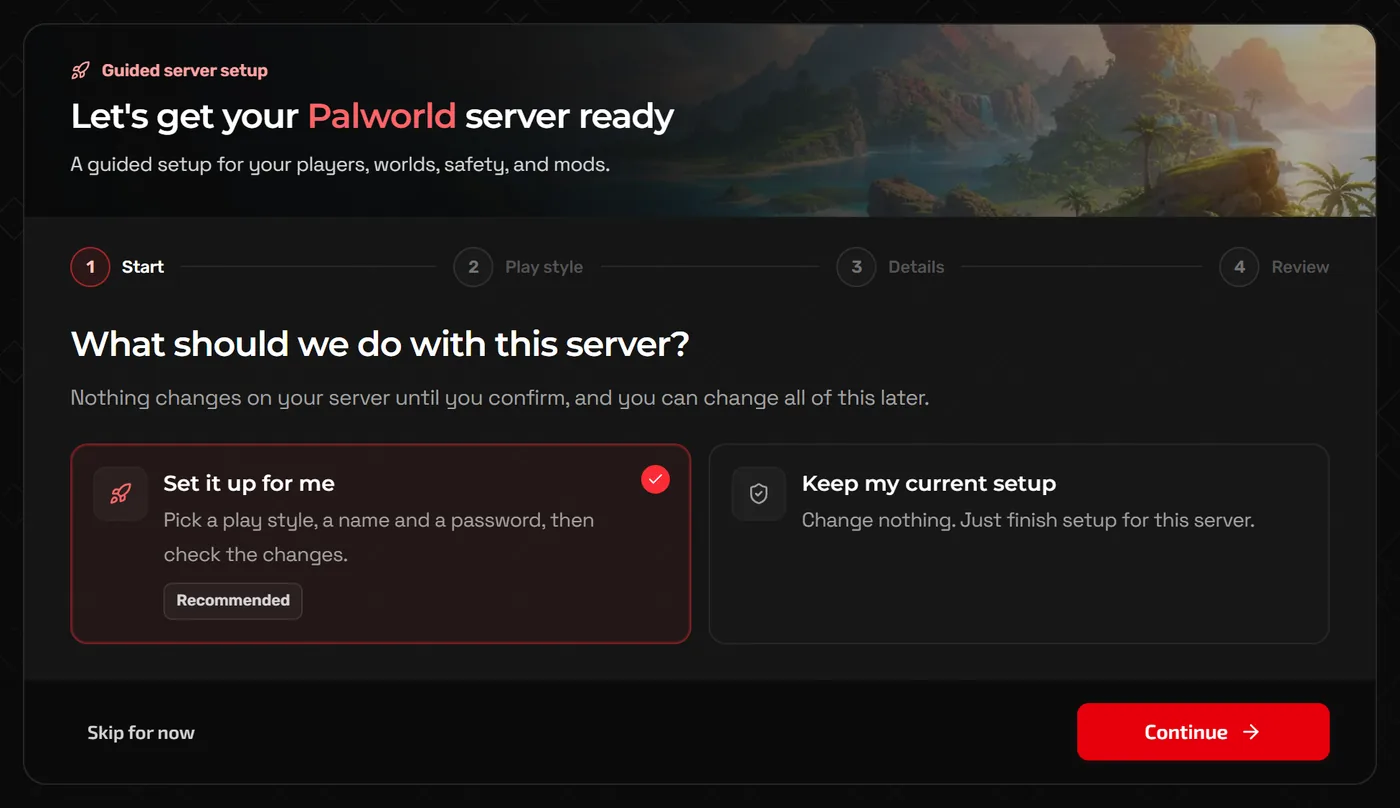
A new Palworld server opens a Guided server setup in the panel the first time you open it. It has four steps (Start, Play style, Details and Review) and nothing changes until you confirm the summary. Choose Skip for now to do it later; Resume setup on the Home page brings it back.
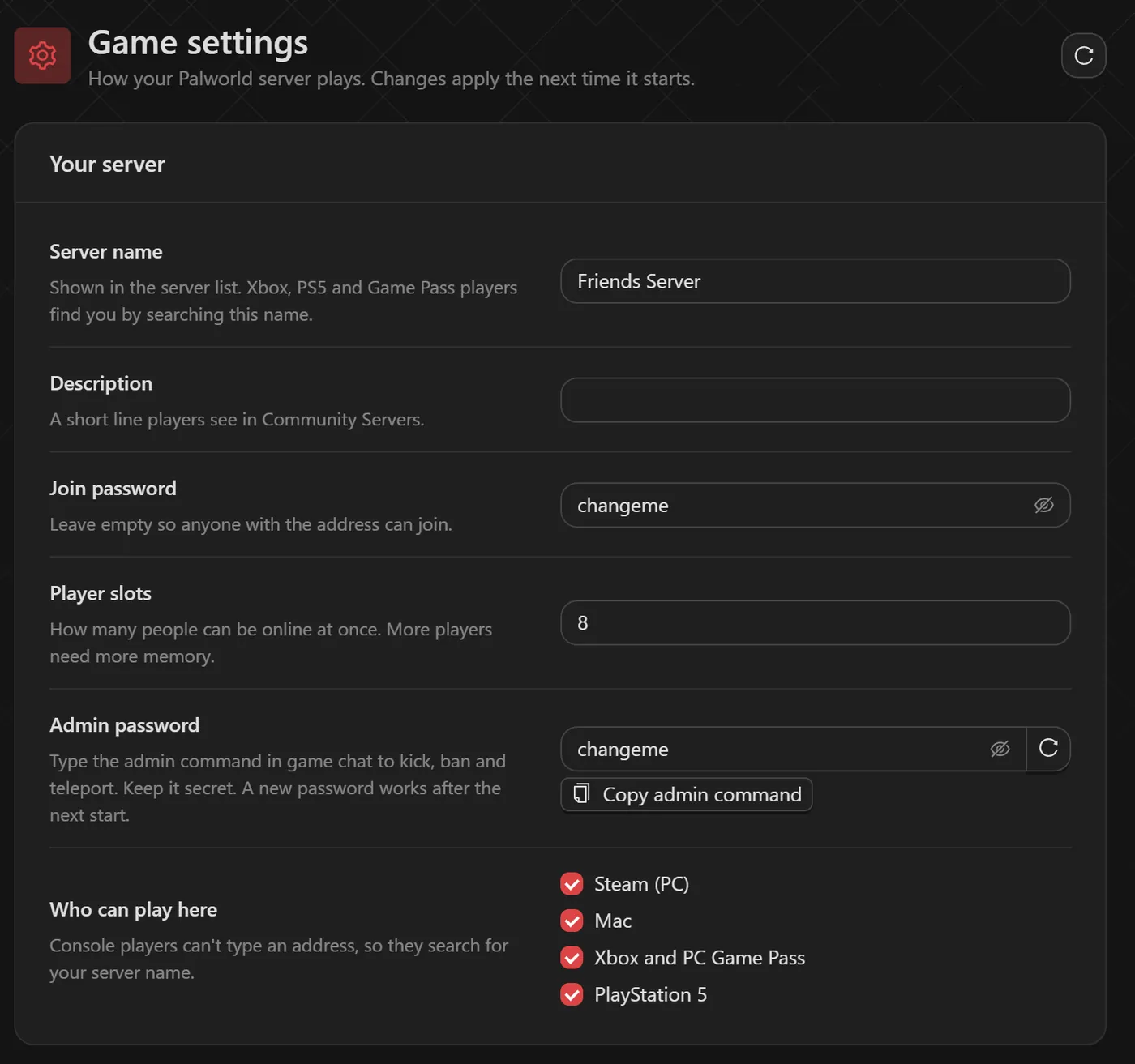
After that, open Game settings. Everything is grouped (Your server, Play style, Progress, Death and danger, Bases and guilds, World and safety) and changes apply the next time the server starts.
- Start from a play style fills in the form with Relaxed, Balanced, Hardcore or PvP values. Check them, then save.
- Less lag lowers wild Pal numbers and base sizes in one click, and works with any play style.
- More settings (for experienced players) has the rest of the options, and Edit the settings file directly at the bottom opens PalWorldSettings.ini itself.
Where PalWorldSettings.ini lives
On a Linux dedicated server, which is what game hosts run, the file is:
Pal/Saved/Config/LinuxServer/PalWorldSettings.iniThe full list of options and their defaults is in DefaultPalWorldSettings.ini in the server's root folder. Palworld never reads that default file; it is there to copy from.
Tip: The panel applies your Game settings to PalWorldSettings.ini when the server starts. If you change a value by hand that Game settings also controls, it can be replaced at the next start, so use Game settings for anything it has a control for.
Editing the file by hand
- Stop the server from the panel. Editing while it runs risks your changes being lost.
- Create a backup on the Backups page so you can roll back.
- Open the file with Edit the settings file directly on Game settings, or browse to it in Files. If it is empty, copy everything from the
[/Script/Pal.PalGameWorldSettings]line down out ofDefaultPalWorldSettings.inifirst. - Change the values you want, save the file and start the server.
All options sit inside one set of brackets on a single line after OptionSettings=. The file is easy to break: a missing bracket, a stray line break or a missing comma makes the server ignore the whole line and quietly run on defaults.
[/Script/Pal.PalGameWorldSettings]
OptionSettings=(Difficulty=None,DayTimeSpeedRate=1.000000,NightTimeSpeedRate=1.000000,ExpRate=2.000000,PalCaptureRate=1.500000,PalSpawnNumRate=1.000000,DeathPenalty=Item,PalEggDefaultHatchingTime=6.000000,ServerName="Friends Server",ServerPassword="changeme",AdminPassword="a-long-secret")
Warning: Start from your own server's DefaultPalWorldSettings.ini rather than a list copied from the internet. Game updates add and rename options, and the default file always matches your server version.
Progression settings
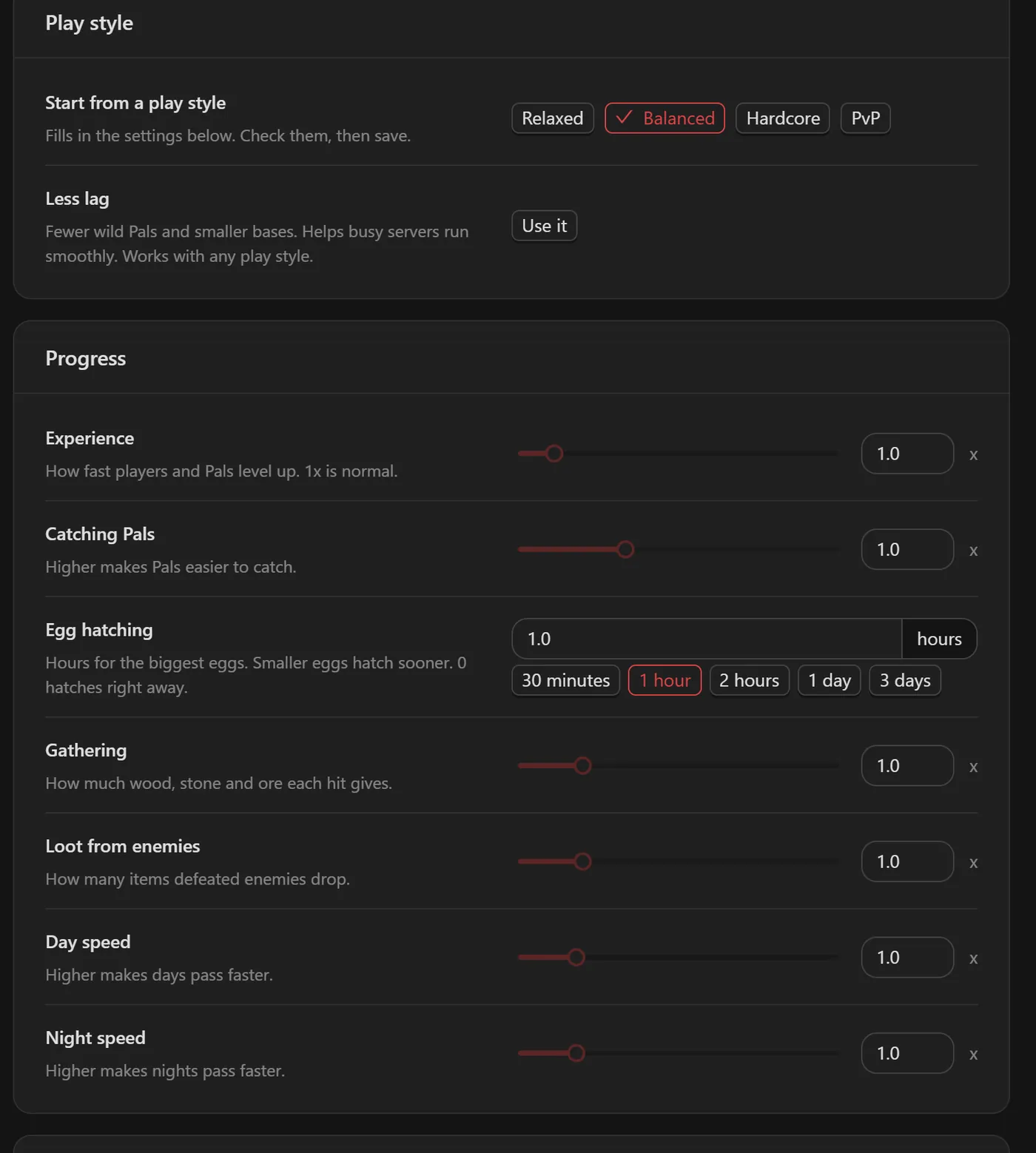
ExpRatee.g. 1.000000- Panel: Experience. How fast players and Pals level up. 2 to 3 is popular for groups with limited play time.
PalCaptureRatee.g. 1.000000- Panel: Catching Pals. Higher values mean fewer wasted spheres.
PalEggDefaultHatchingTimee.g. 72.000000- Panel: Egg hatching. Hours for the biggest eggs; smaller eggs hatch sooner and 0 hatches them right away. The panel has quick picks from 30 minutes to 3 days.
CollectionDropRatee.g. 1.000000- Panel: Gathering. Wood, stone and ore from each hit.
EnemyDropItemRatee.g. 1.000000- Panel: Loot from enemies.
DayTimeSpeedRate / NightTimeSpeedRatee.g. 1.000000- Panel: Day speed and Night speed. Higher makes that part of the day pass faster.
PalSpawnNumRatee.g. 1.000000- Panel: Wild Pal numbers (More settings, Performance). More Pals need more memory, so change it in small steps.
WorkSpeedRatee.g. 1.000000- Panel: Pal work speed (More settings). The panel notes that some versions of Palworld ignore it.
Difficultye.g. None- Leave as
Noneand tune the individual rates instead.
Death penalty, danger and PvP
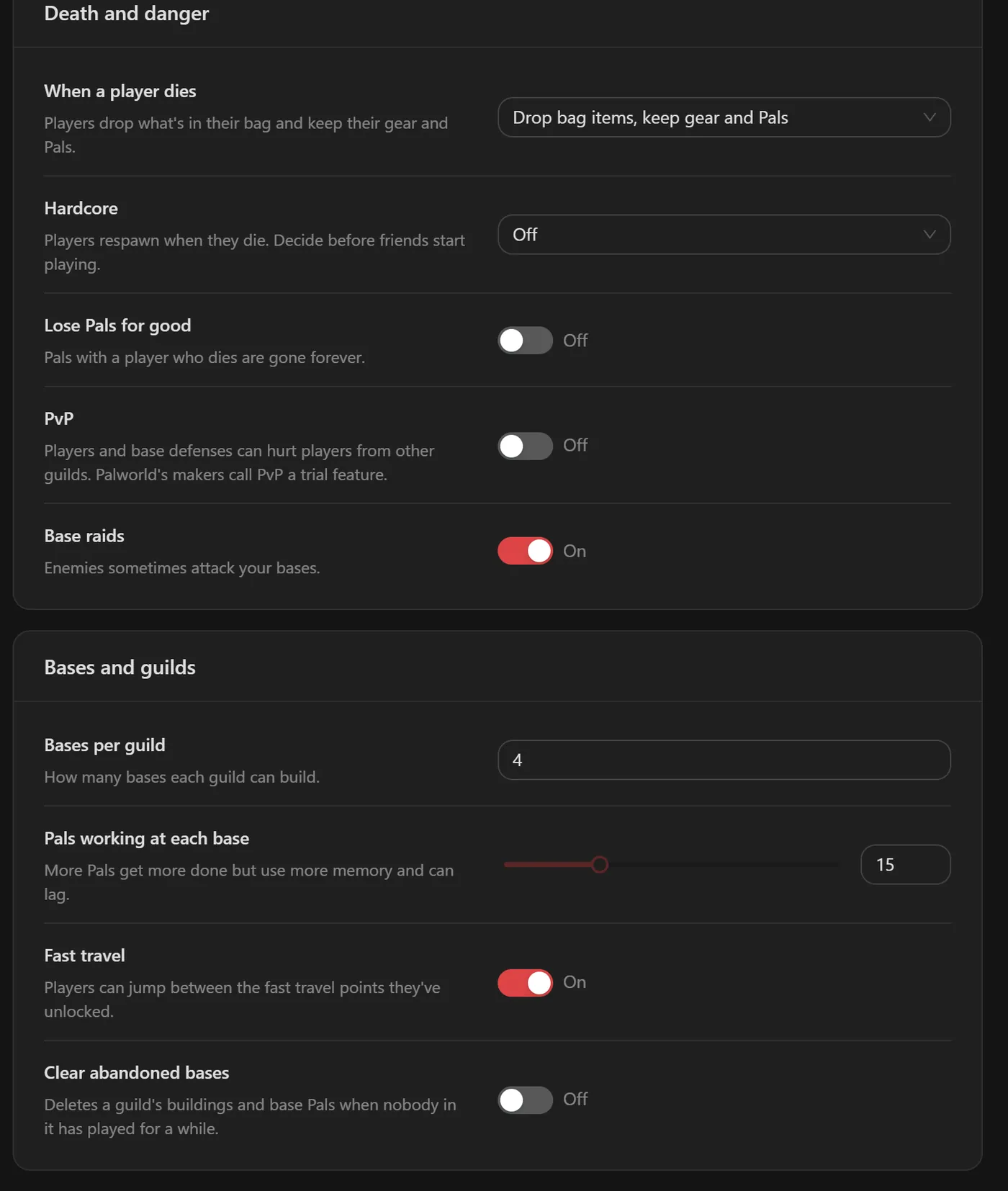
DeathPenaltye.g. All- Panel: When a player dies. In the file:
None,Item(bag items only),ItemAndEquipment(items and gear) orAll(items, gear and the Pals in your party). bEnableInvaderEnemye.g. True- Panel: Base raids. Turn off for a relaxed build server.
PlayerDamageRateAttack / PlayerDamageRateDefensee.g. 1.000000- Panel: Damage players deal and Damage players take (More settings). A higher "take" value means players get hurt more. Pals have the same pair.
PlayerStomachDecreaceRatee.g. 1.000000- Panel: Player hunger (More settings). In the file, the spelling "Decreace" is Palworld's own; type it exactly. Pals have
PalStomachDecreaceRate. bEnablePlayerToPlayerDamage / bEnableFriendlyFiree.g. False- Damage between players and within a guild. Use the PvP switch and Friendly fire (More settings, PvP extras). The panel notes that Palworld's makers call PvP a trial feature.
bEnableFastTravele.g. True- Panel: Fast travel, between the points players have unlocked.
Hardcore (players do not respawn) and Lose Pals for good are separate switches in the same section. Decide on them before friends start playing.
Bases, guilds and performance limits
BaseCampWorkerMaxNume.g. 15- Panel: Pals working at each base. Popular to raise, but every extra worker uses more memory and CPU.
BaseCampMaxNumInGuilde.g. 4- Panel: Bases per guild.
BaseCampMaxNume.g. 128- Panel: Bases on the server (More settings). The total for all guilds together.
GuildPlayerMaxNume.g. 20- Panel: Players per guild (More settings).
DropItemMaxNume.g. 3000- Panel: Dropped items on the ground (More settings). Lower it if the server slows down over time.
BuildObjectDeteriorationDamageRatee.g. 1.000000- Panel: Building decay (More settings). Decay of buildings outside a base; 0 stops it.
bAutoResetGuildNoOnlinePlayerse.g. False- Panel: Clear abandoned bases. Deletes a guild's buildings and base Pals when nobody in it has played for a while. Useful on public servers, harsh on friend groups.
Server name, passwords, crossplay and admin
ServerNamee.g. "Friends Server"- Panel: Server name. Shown in the server list; Xbox, PS5 and Game Pass players find you by searching it.
ServerDescription- Panel: Description. A short line players see in Community Servers.
ServerPassworde.g. "changeme"- Panel: Join password. Leave empty so anyone with the address can join.
AdminPassworde.g. "a-long-secret"- Panel: Admin password. Keep it secret; a new password works after the next start.
ServerPlayerMaxNume.g. 32- Panel: Player slots. 32 is the game's maximum, and more players need more memory.
PublicPorte.g. 8211- Leave it alone. The panel assigns your port and shows it with the address on Home.
Who can play here on Game settings chooses the platforms that can join: Steam (PC), Mac, Xbox and PC Game Pass, and PlayStation 5. Console players cannot type an address, so they search for your server name instead.
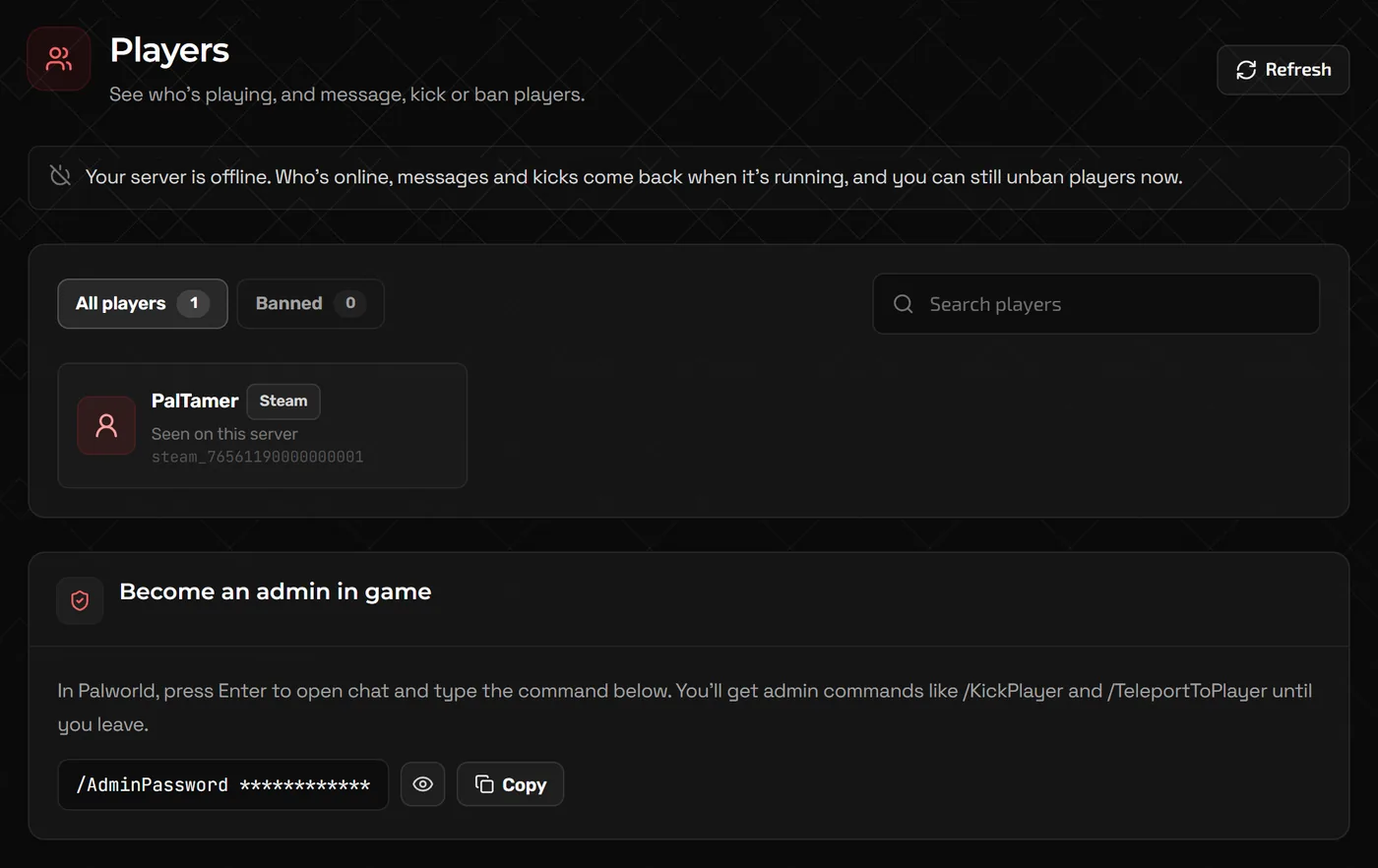
To become admin, join the server, press Enter to open chat and type the command shown under Become an admin in game on the Players page (/AdminPassword followed by your admin password; the page has a Copy button). The Players page also shows who is online and lets you message everyone, kick or ban players while the server runs, and unban them even while it is stopped.
/ShowPlayers                    list players with their IDs
/KickPlayer <SteamID>           kick a player
/BanPlayer <SteamID>            ban a player
/UnBanPlayer <SteamID>          lift a ban
/Broadcast <message>            message everyone
/Save                           save the world now
/Shutdown <seconds> <message>   warn players, then shut down
/TeleportToPlayer <SteamID>     go to a player
/TeleportToMe <SteamID>         bring a player to you
Use the ID exactly as /ShowPlayers prints it.
Moving an existing world to your server
- On the PC that hosted your co-op world, open
%localappdata%\Pal\Saved\SaveGames\and then the folder named with your Steam ID. Each world is a folder with a long hexadecimal name that containsLevel.savand aPlayersfolder. - Zip that world folder.
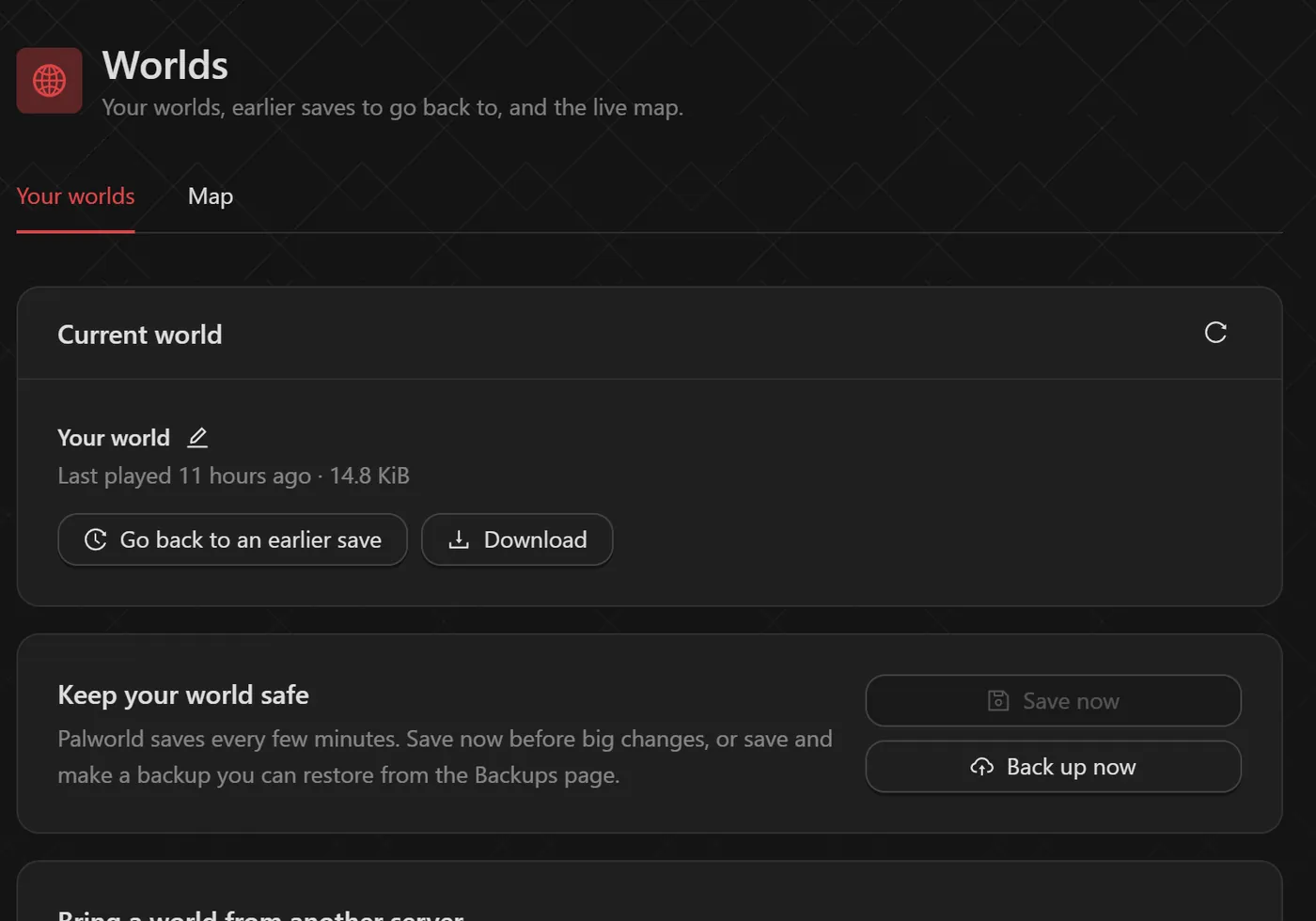
- Stop your server, open Worlds in the panel and use Import a world under Bring a world from another server to upload the ZIP. The panel adds it to your worlds and uses it on the next start.
- Start the server and join.
Warning: The co-op host's character is stored under a special ID and does not carry over automatically; other players' characters do. Community save-fix tools can move the host character, but back up the world before trying one.
FAQ
Why are my Palworld settings not applying?
Changes apply the next time the server starts, so restart after saving. If you edited the file by hand, check that the server was stopped, that the OptionSettings line has no typo or line break, that you edited Pal/Saved/Config/LinuxServer/PalWorldSettings.ini and not the default file, and that Game settings is not setting the same option.
What are good settings for a small group of friends?
Start from the Relaxed play style and adjust. A common relaxed setup is Experience 2.0, Catching Pals 1.5, Egg hatching 2 hours, a death penalty that only drops bag items, and Base raids left on so bases still get the occasional raid.
How do I make the server restart every day?
On the Backups page, turn on Automatic restart and pick a time. Players get a warning five minutes before, and the world is saved first. Long-running Palworld servers tend to use more memory over time, so a daily restart helps.
Where is more Palworld help?
If players cannot join, see our Palworld connection troubleshooting guide. The NEXUS knowledge base has articles for problems like players stuck loading or deleting a broken character.
Related guides
ARK: Survival Ascended Server Settings (GameUserSettings.ini and Game.ini)
GameUserSettings.ini vs Game.ini, rates and difficulty, breeding multipliers, admin access and adding CurseForge mods.
How to Host a Valheim Dedicated Server
Server name and password rules, crossplay and join codes, world modifiers, moving your existing world, and admin lists.
Palworld Server Not Showing Up or Can't Connect? Fixes That Work
Community list vs direct connect, passwords, version mismatches, Xbox and PlayStation players, and crashes from low memory.